EasyCatalog is a plugin for Adobe InDesign that helps automate the creation of publications. It allows you to easily integrate your publications into your existing designs.
Getting started
To get started, make sure that you have created an XML publication template and a print that uses the specific template. If you do not have that yet, we have guides on how to set up a template. We will set up a print and template in this guide.
To read and automatically fetch XML from your PIM, you will need the XML Data Provider module for EasyCatalog.
Creating the publication print
For EasyCatalog to be able to fetch the publication from the PIM, you will need to have a publication print. A publication print is where you define the rules and conditions for how the print is generated.
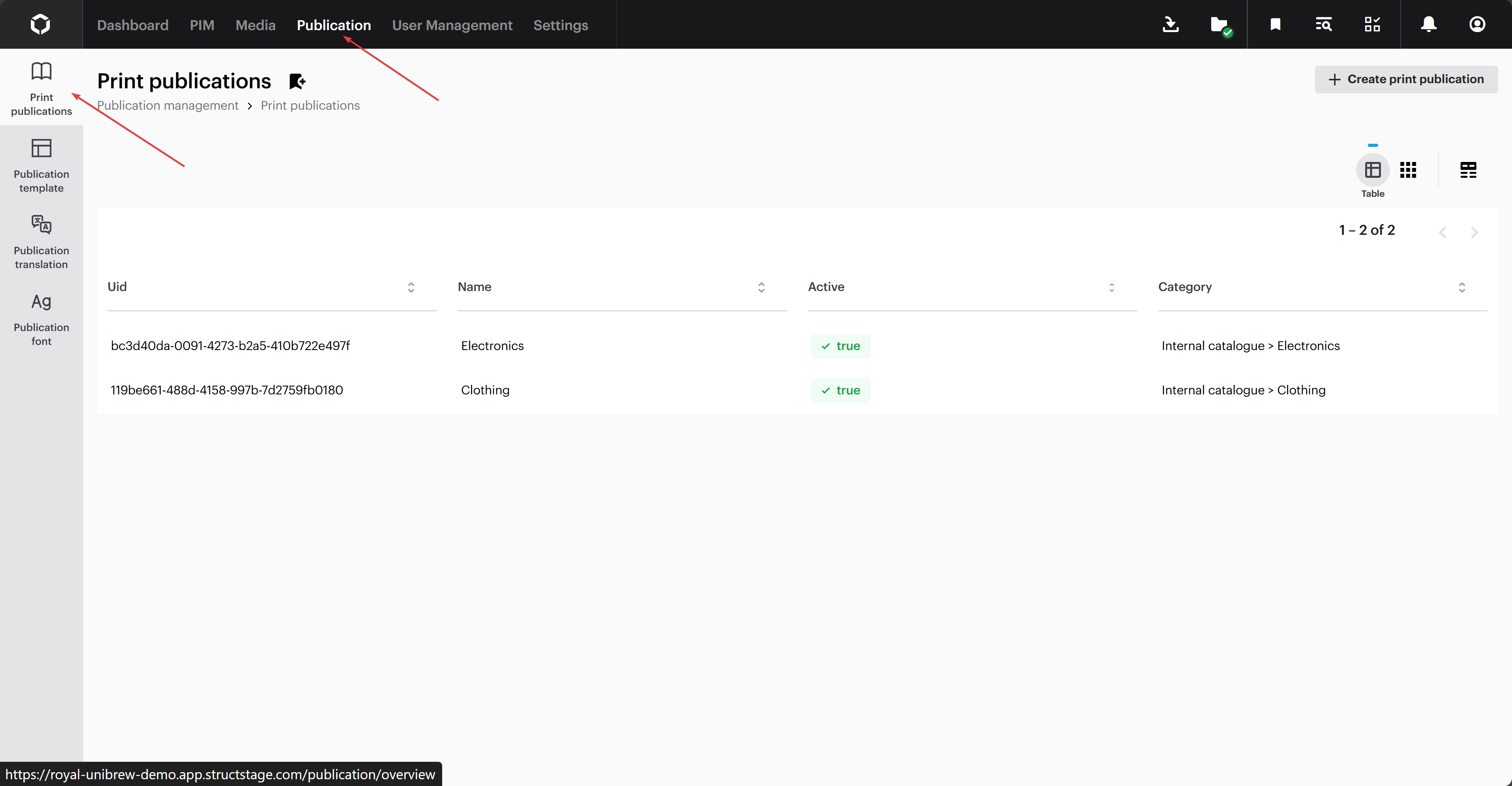
To create a new publication print, head to 'Publications' -> 'Print publications'.
The publication print overview
Click 'Create print publication' in top right corner of the page. This will take you to a new page, where you will be able to fill out the settings for your print.
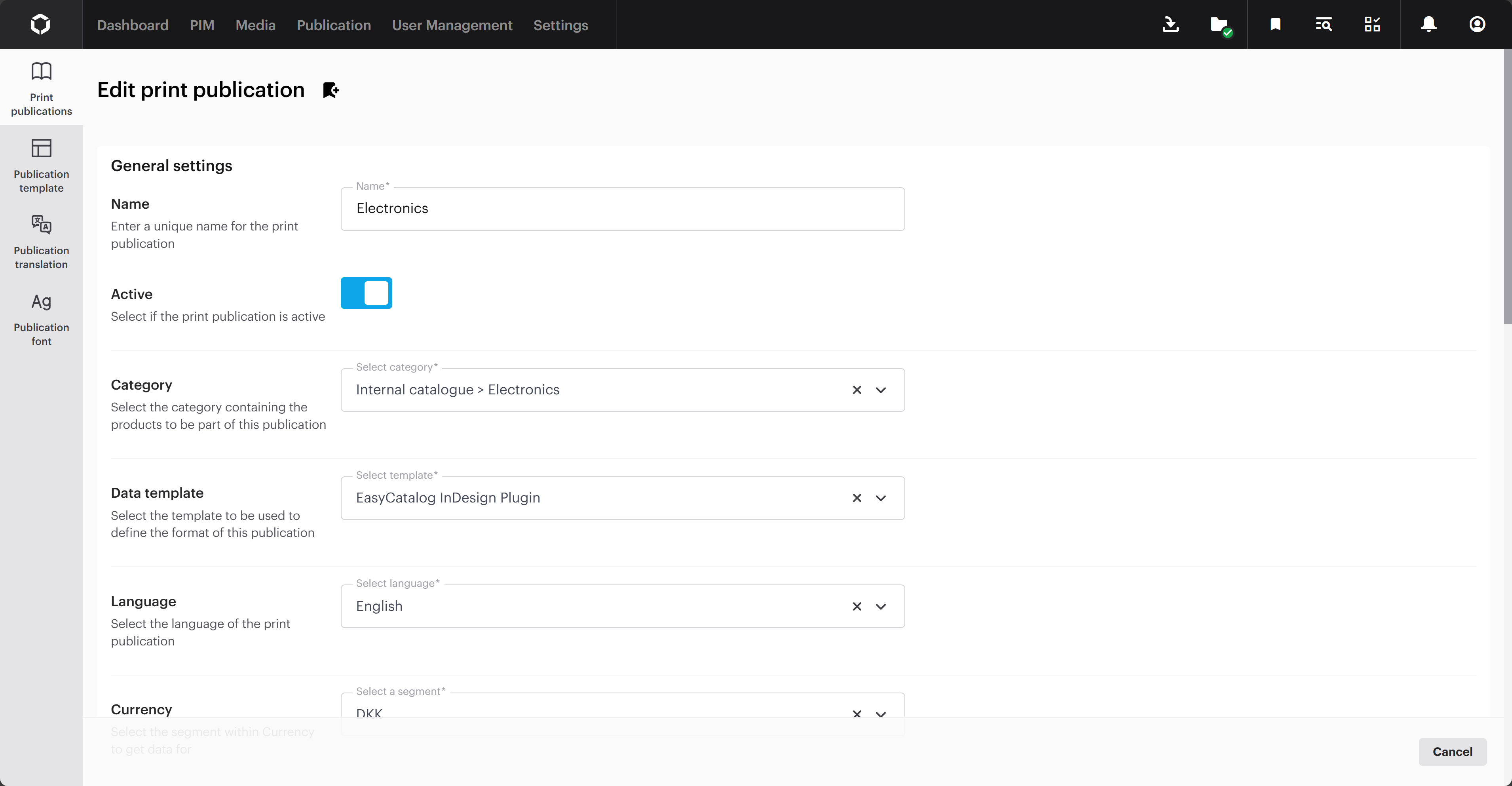
The print publication settings page
The two most important settings are the 'Category' and the 'Data template' settings. The category setting determines what product data will be available to EasyCatalog, and the data template is the layout of that data.
Select the one that fits your specific use case.
We have selected 'Electronics', which contain products that fit the specific data template.
Make sure that the template that you want to use has its type set to 'Data', and not to 'PDF'.
If you want to learn more about the rest of the settings on this page, we have a guide walking through how to create print publications here.
Creating the template
For EasyCatalog to be able to read and understand the XML that you send it, you will need this default tag structure. This will add the context needed for the module to understand how to structure the data.
Let's break it down
The "Type"-property tells EasyCatalog what each row will consist of, and also help it identify where the initial rows start.
The "type"-property with a small "t" is used to describe the structure you are going to be using. You have two options:
Complex
This enables EasyCatalog to see this element as a complex object where the tags below it will be seen as individual properties.
Table
This enables EasyCatalog to see this element as a table where each tag below is considered as an individual row.
This is a loop that iterates over the Variants found inside the "Product".
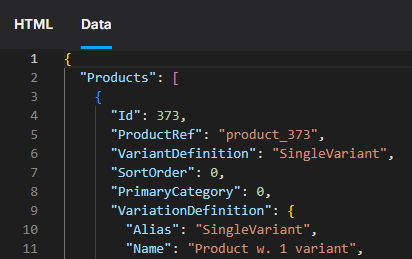
The "product" is the referred type from the Entity above. You can see what properties are available on your entity by going to the 'Data' tab inside the template designer.
When that is all set up, we will move on to setting up EasyCatalog inside Adobe InDesign.
Setting up EasyCatalog in Adobe InDesign
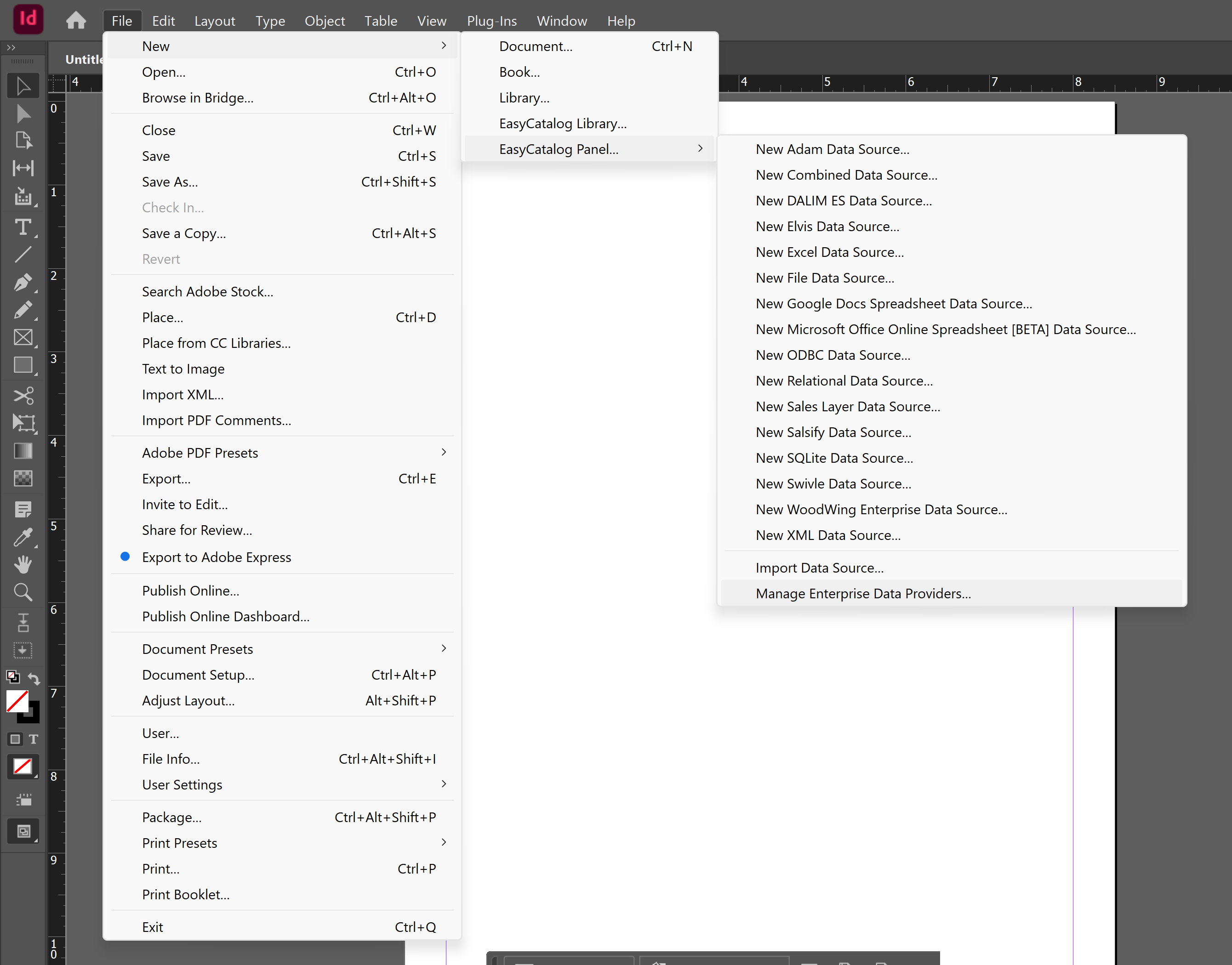
First, create a new file inside Adobe InDesign. Then go to 'File' -> 'New' -> 'EasyCatalog Panel...' -> 'Manage Enterprise Data Providers...'
Inside Adobe InDesign
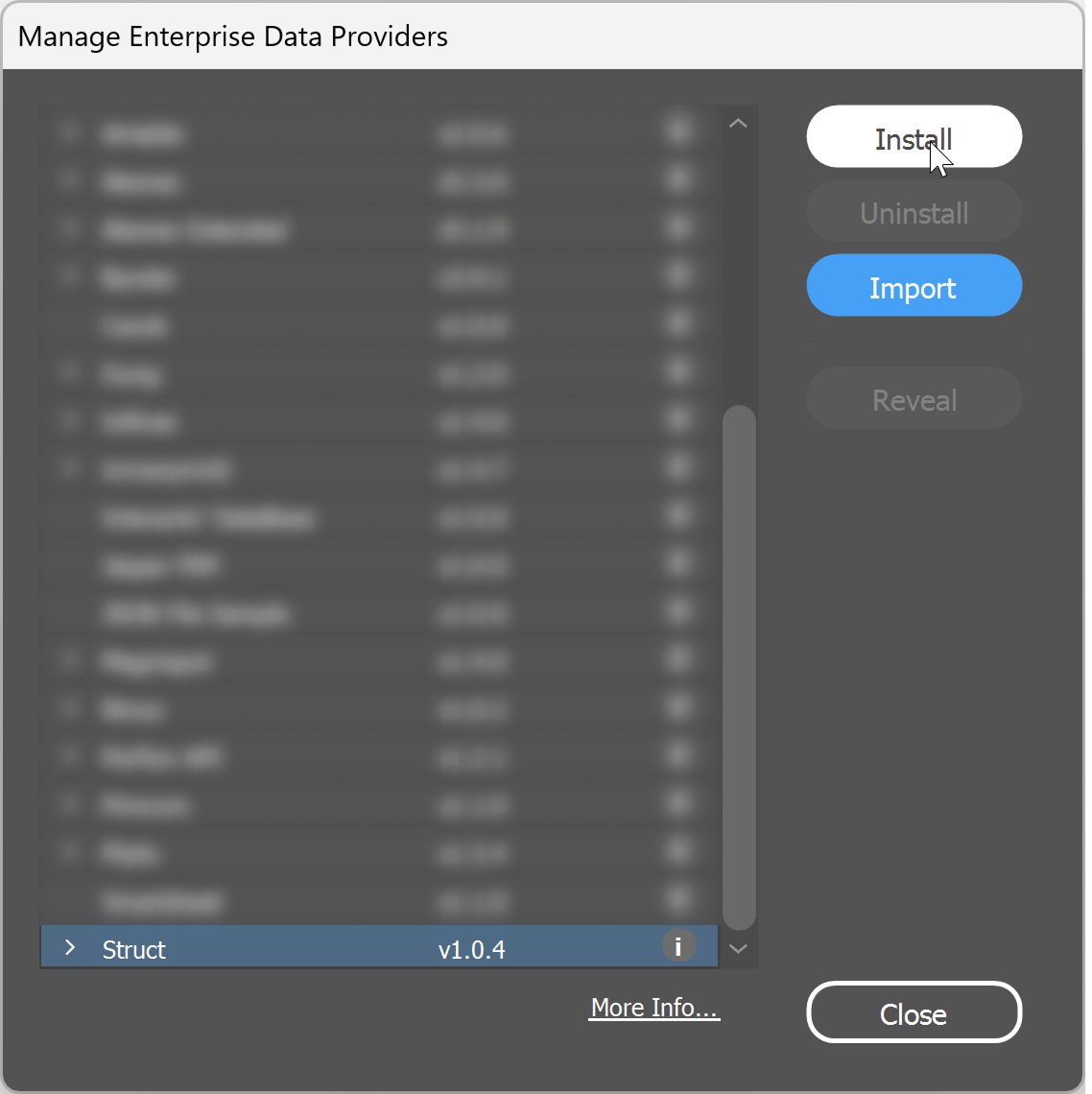
This will open up a new window from where you will be able to add new data providers. Scroll all the way down until you see 'Struct'. Click on the row and then click 'Install'.
The data providers overview from EasyCatalog within Adobe InDesign
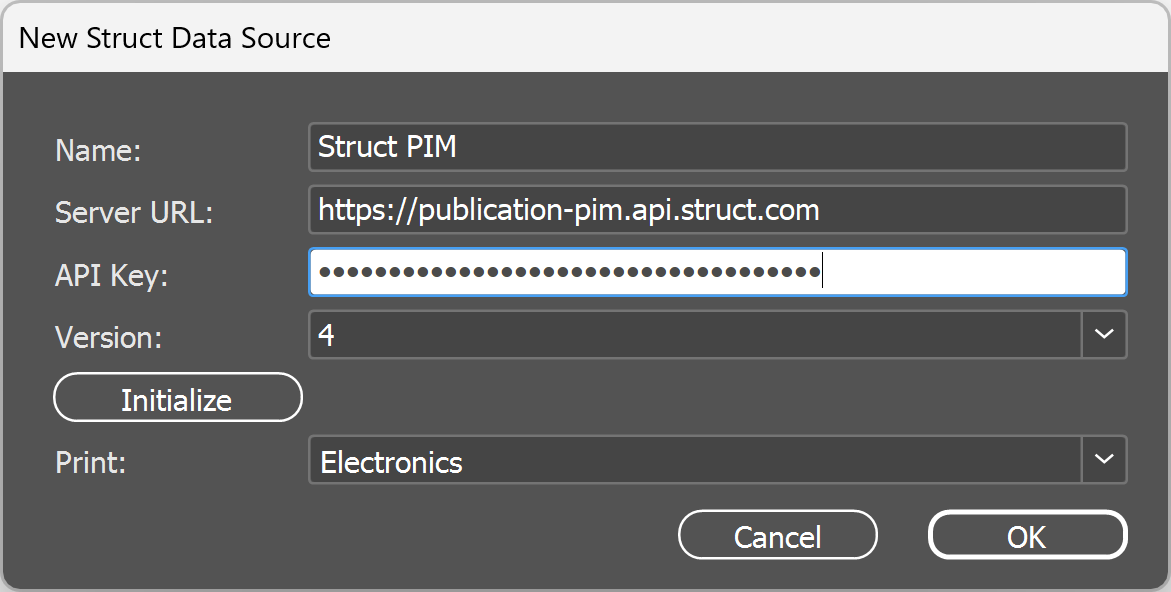
Once that is installed, you need to set up the data source for Struct PIM. To do that, go to 'File' -> 'EasyCatalog Panel...' -> 'New Struct Data Source'.
The data provider configuration window inside Adobe InDesign
Give it a name that is recognizable to you, the URL to your PIM API, an API key that has access to publications and select the version of the PIM you are using. You can get all this information inside your API key in 'Settings' -> 'Integration' -> 'API configuration'.
Make sure that your API key has permission to get publication prints.
Ensure all fields are filled out, then click 'Initialize'. Once the connection is successful, your publications will appear in the 'Print' dropdown menu. Finally, click 'OK'. A new table window will appear which contain data in the order that you have specified in your template.