> For the complete documentation index, see [llms.txt](https://docs.struct.com/llms.txt). Markdown versions of documentation pages are available by appending `.md` to page URLs; this page is available as [Markdown](https://docs.struct.com/tutorials/guides/how-to-use-publications/how-to-create-a-publication-template.md).
# How to create a publication template
The publication template is where you can structure how your data output will look like upon export.
### What is a publication template?
A publication template serves as a blueprint for organizing and displaying data from the PIM. It specifies the layout and style in which product information will appear, ensuring consistency across publications. With the help from the render engine, a dynamic file will be generated and populated with the relevant entity data.
### Creating a publication template
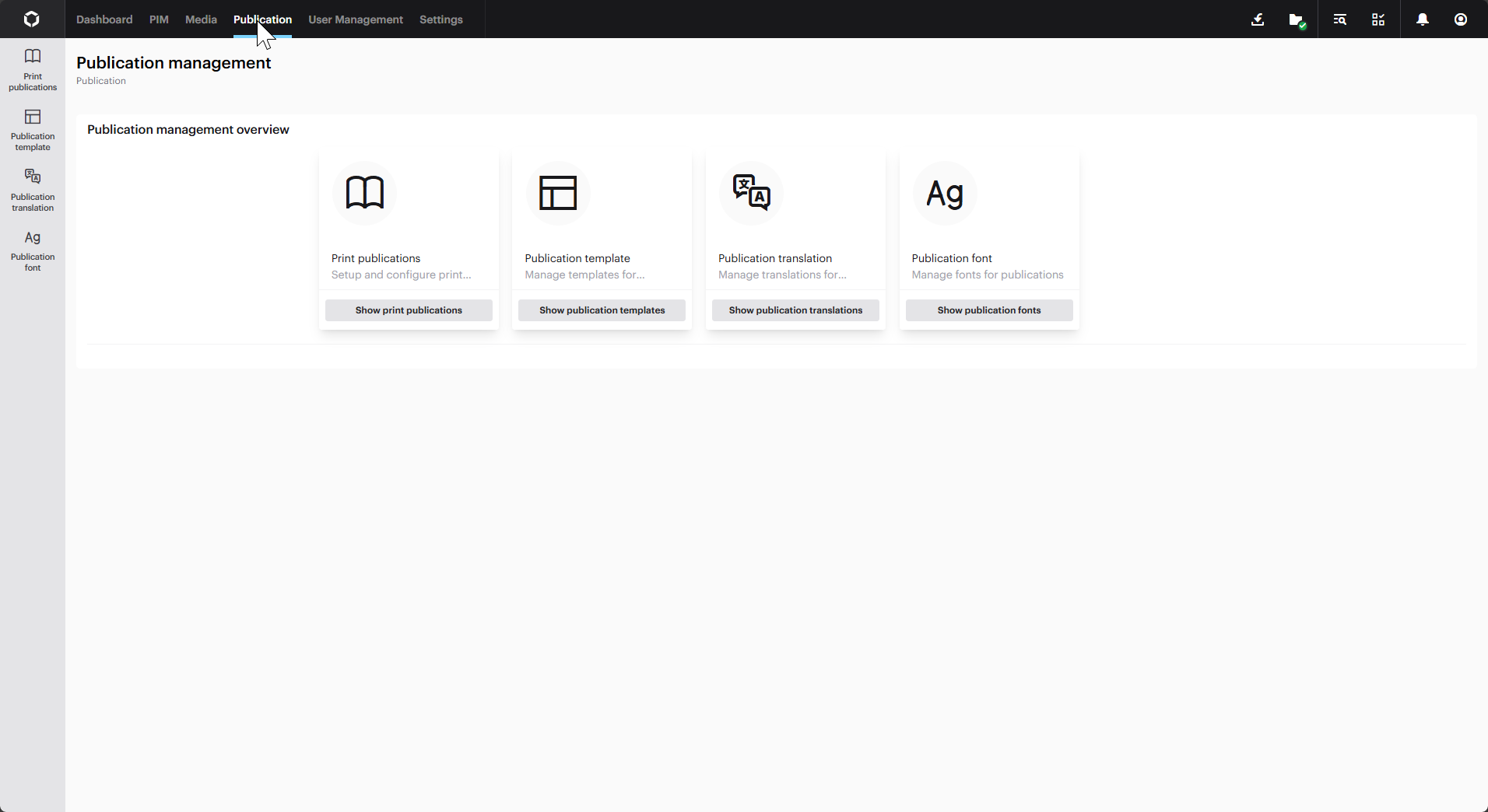
To create a new publication template, head to the publication page. You can do this by clicking 'Publication' in the top menu.
The publication page
Navigate to the 'Publication template' page, either by clicking the button in the publication management overview or in the side-menu.
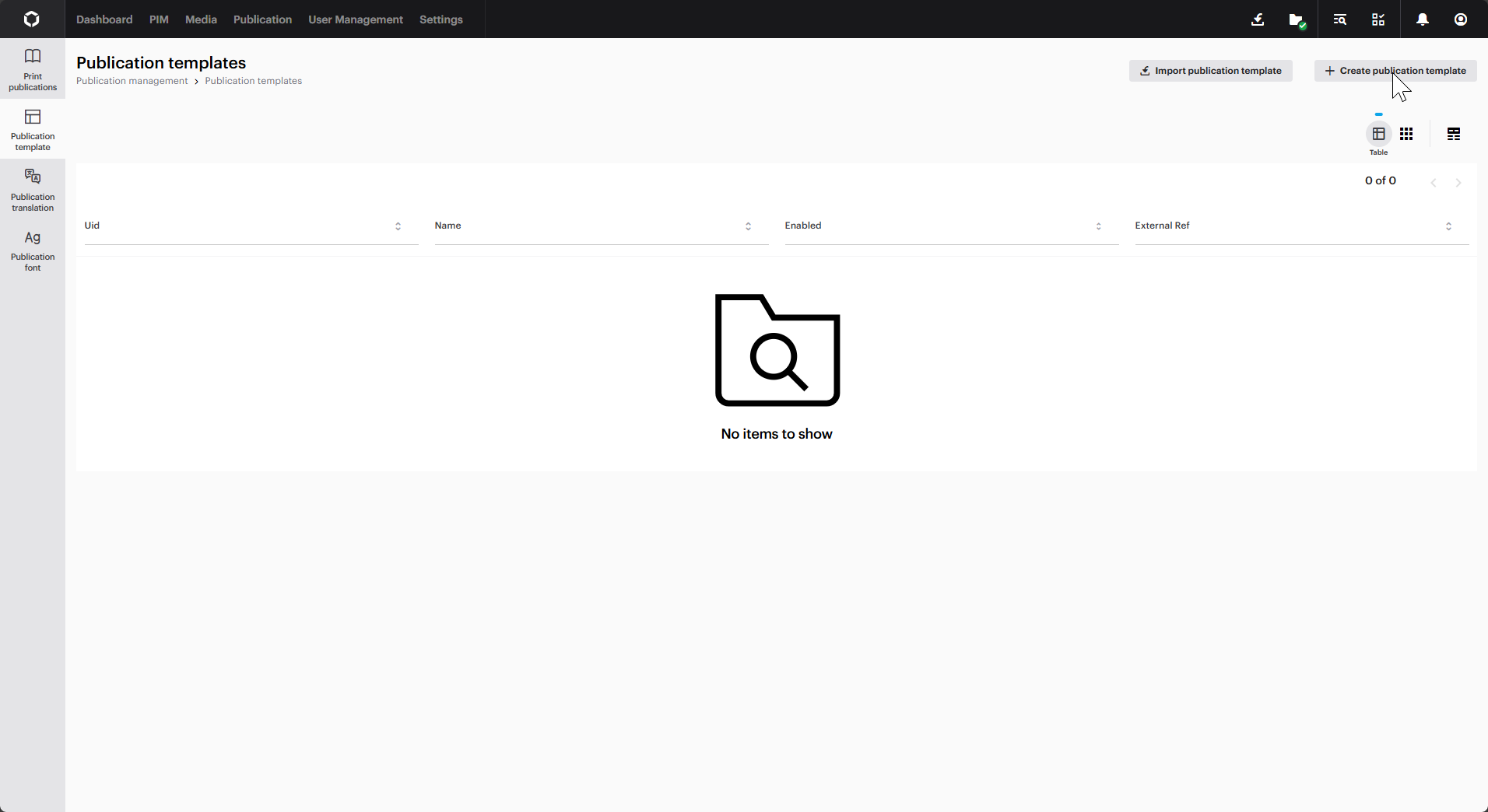
When you are on the 'Publication templates'-page, you can either import a template or create a new one.
Click 'Create publication template' in the top right corner.
The publication template overview
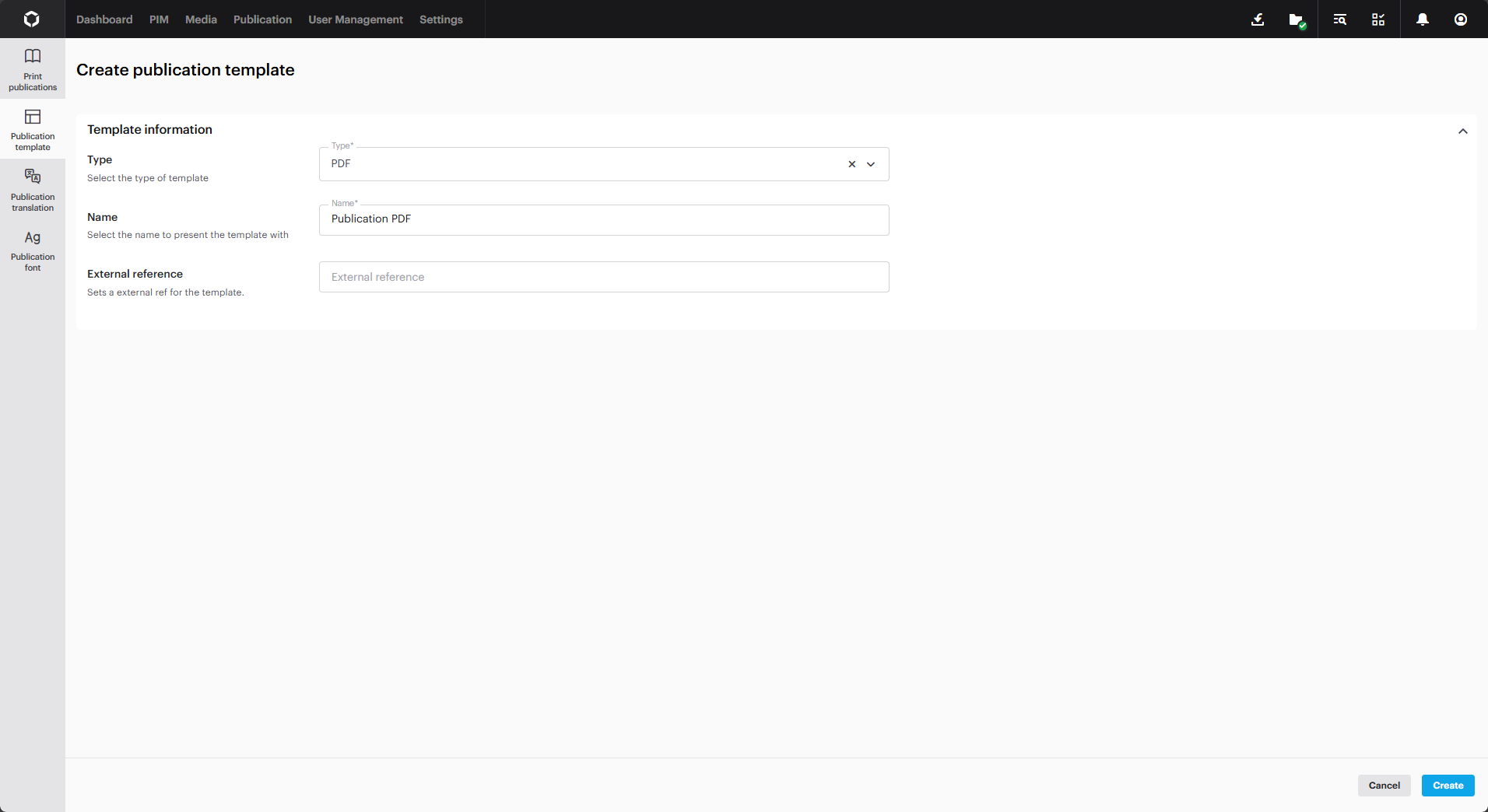
The template needs a type. You can choose between 'Data' and 'PDF'.
The 'Data'-type lets you easily integrate with design tools like Adobe InDesign. Alternatively, 'PDF' templates give you plenty of design choices. Select the one that fits your specific needs.
The publication template settings
Give it a name and, if you need it, an external reference. Click 'Create' when you are all set and done.
When you click 'Create', new fields will show up. [You can learn more about the settings here](/reference/publication/publication-template/publication-template-details.md).
### What should I use?
When choosing what kind of publication template to create, consider its purpose and how it will be used. Here's a simple way to decide:
**For sharing data**: If your goal is to send data to other programs or systems for further analysis or processing (eg EasyCatalog in Adobe InDesign), it's best to use the 'Data' type as it is designed for data exchange, as it allows you to specify the data format you want to use, making it easier for other systems to read and process the information you provide. [You can read more about how to set up publications with EasyCatalog here](/tutorials/guides/how-to-use-publications/how-to-set-up-easycatalog-with-publications.md).
**For direct viewing**: On the other hand, if you want to create a document that is ready to view or print, such as a report or a brochure, a PDF format is the way to go. A PDF captures the layout and design of your document accurately, ensuring that it looks the same on any device.
Simply put, choose 'Data' for data sharing and 'PDF' for creating final documents ready for presentation.
### Accessing the designer
After specifying the settings for the template, you can start designing how the data should be displayed in the designer.
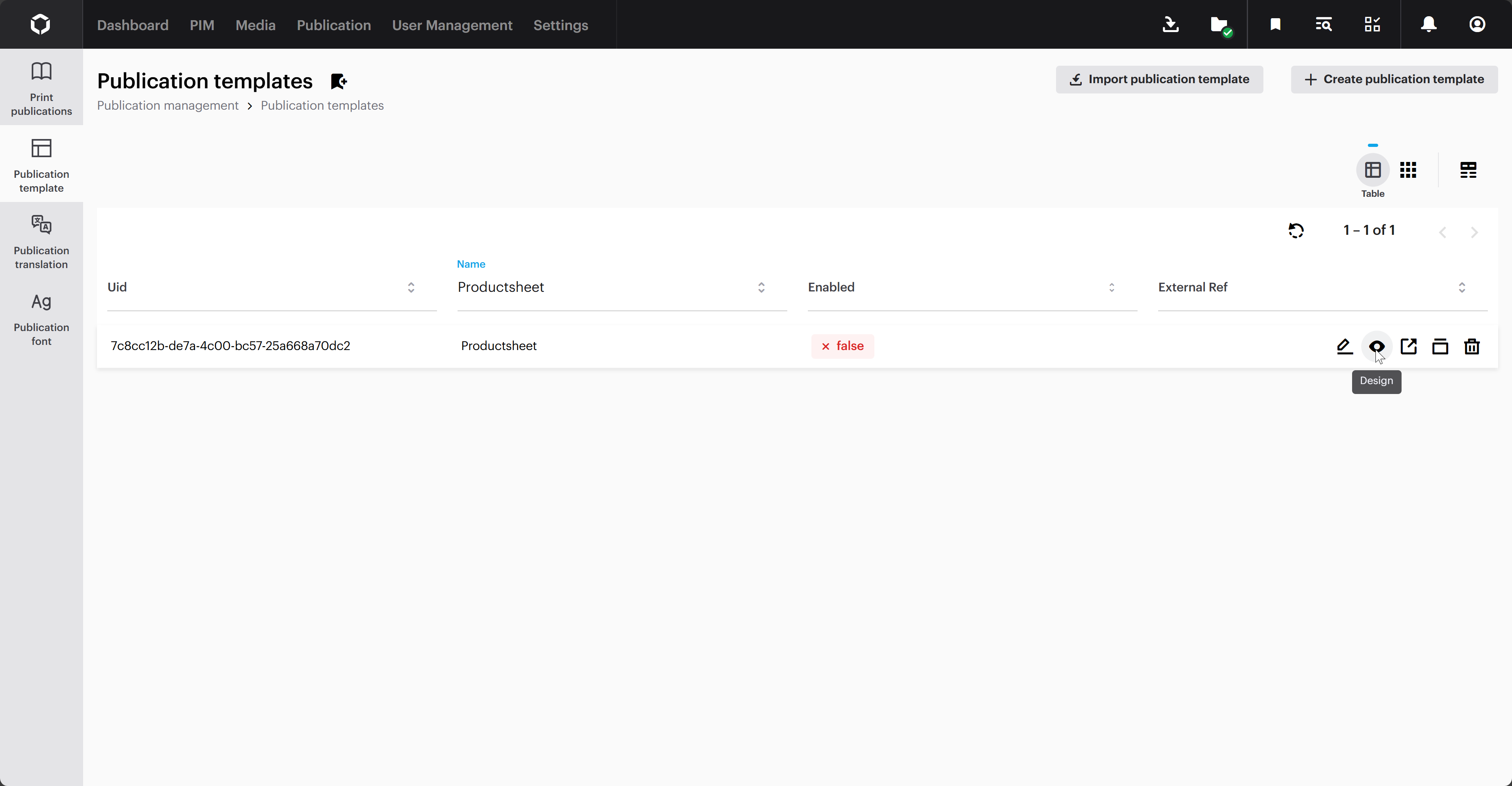
To access the designer, head out to the 'Publication templates'-page, hover over the template you just created, and click the :eye:-icon to access the designer.
The icon that will open up the designer
To learn more about how to use the template designer, visit our developer section on the topic.
---
# Agent Instructions
This documentation is published with GitBook. GitBook is the documentation platform designed so that both humans and AI agents can read, navigate, and reason over technical content effectively. Learn more at gitbook.com.
## Querying This Documentation
If you need additional information that is not directly available in this page, you can query the documentation by asking a question.
Perform an HTTP GET request on the following URL with the `ask` and `goal` query parameters:
```
GET https://docs.struct.com/tutorials/guides/how-to-use-publications/how-to-create-a-publication-template.md?ask=&goal=
```
`ask` is the immediate question: it should be specific, self-contained, and written in natural language.
`goal` is what the user is ultimately trying to achieve, the reason they need the answer. Sharing it helps GitBook give you a better, more relevant answer. A goal is most helpful when it describes the outcome the user wants rather than restating the question. For example, with `ask=how do I create an API token`, a goal like `automate deployments from our CI pipeline` lets GitBook tailor the answer to that use case.
The response will contain a direct answer to the question and relevant excerpts and sources from the documentation.
Use this mechanism when the answer is not explicitly present in the current page, you need clarification or additional context, or you want to retrieve related documentation sections.