
How to set up a single page product sheet

You can use publications to make unique product sheets that display important information to customers.

We have already covered how to create a publication template, so in this guide, we will focus on specifically creating a single product sheet with a footer. We will be using Liquid as our rendering engine.

If you are not familiar with publications at all, we recommend that you start here.

In the following guide you will learn how to set up a single product sheet that displays an image, product descriptions and a table for technical specifications for a product.

Setting up the template

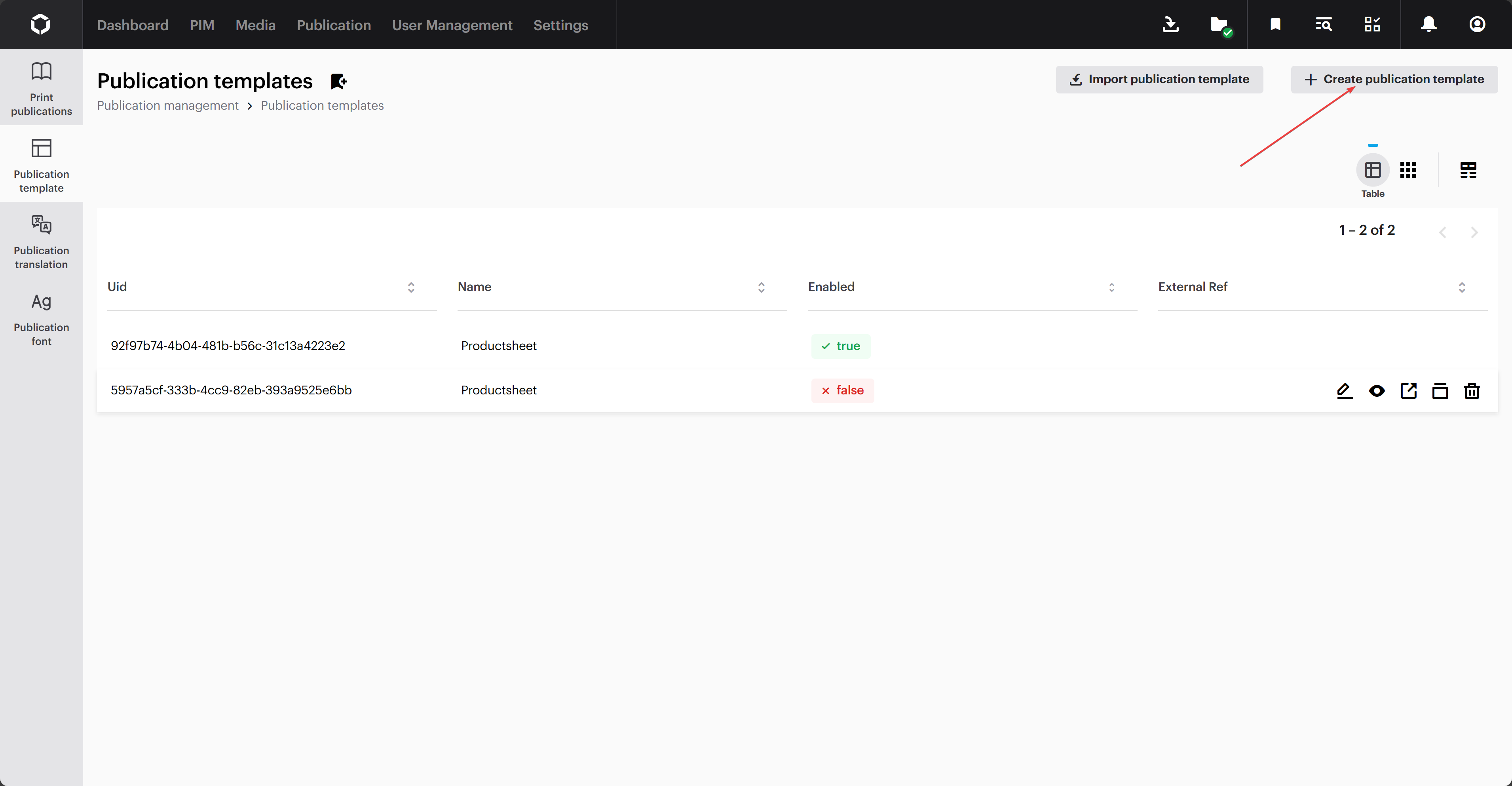
First, go to 'Publications' > 'Publication template' and click 'Create new publication template'.

The button to create a new publication template

A new page will open up. This is where you can set the settings for your template.

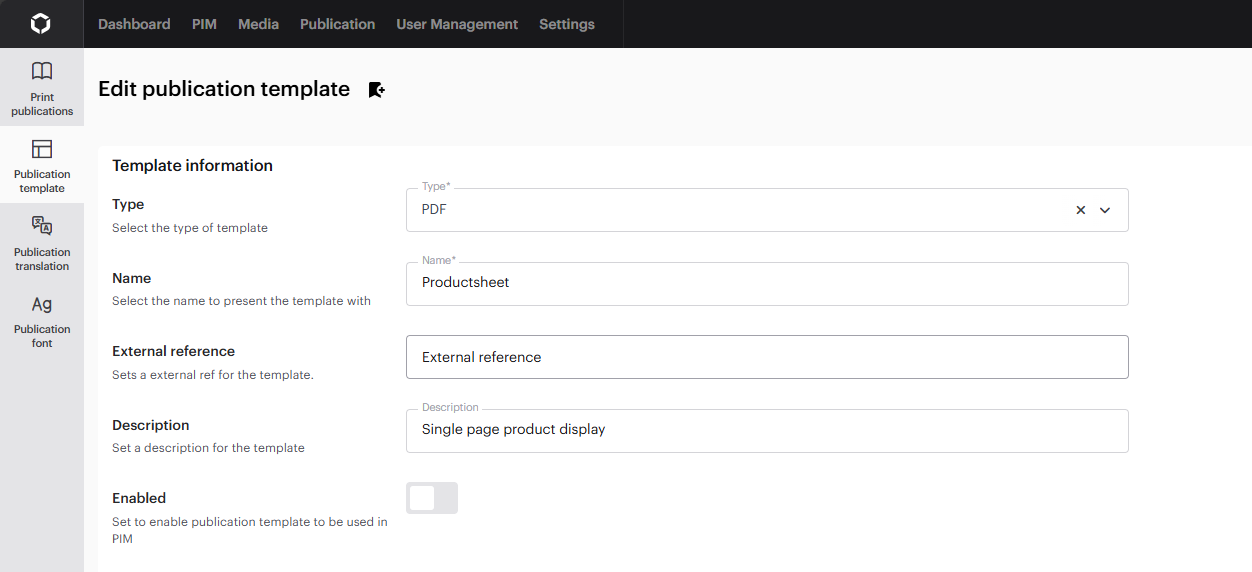
The template information for the template publication

Set the template type to 'PDF', and give it a name that describes what we are building.

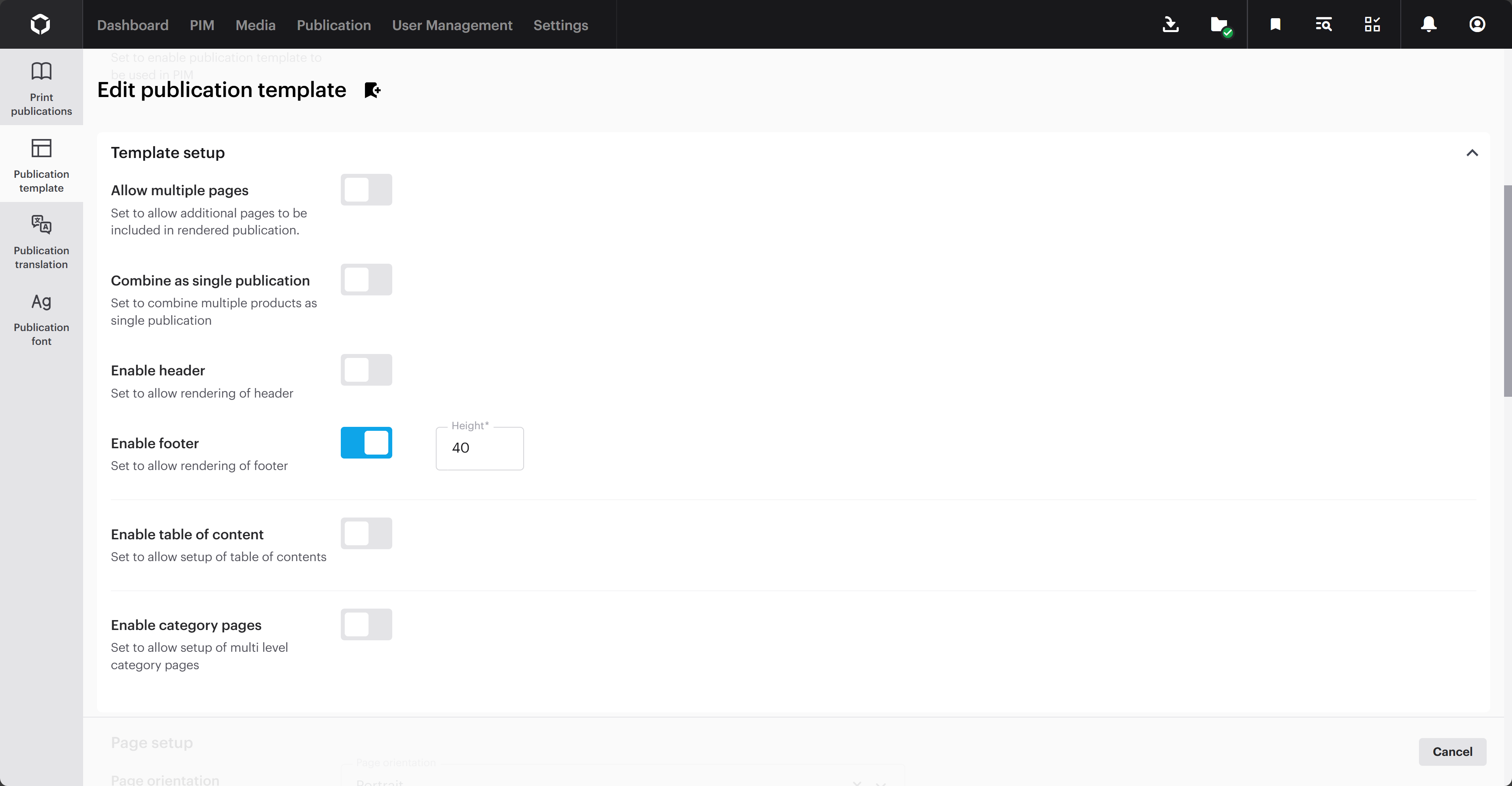
Scroll down to the 'Template setup'-section. Enable the 'Enable footer', and give it a height of 40.

The template setup settings

The next section is the 'Page setup'. This is where you can define the orientation and size of the publication.

Set the orientation to 'Portrait' and the page size to 'A4'.

The template setup for the PDF

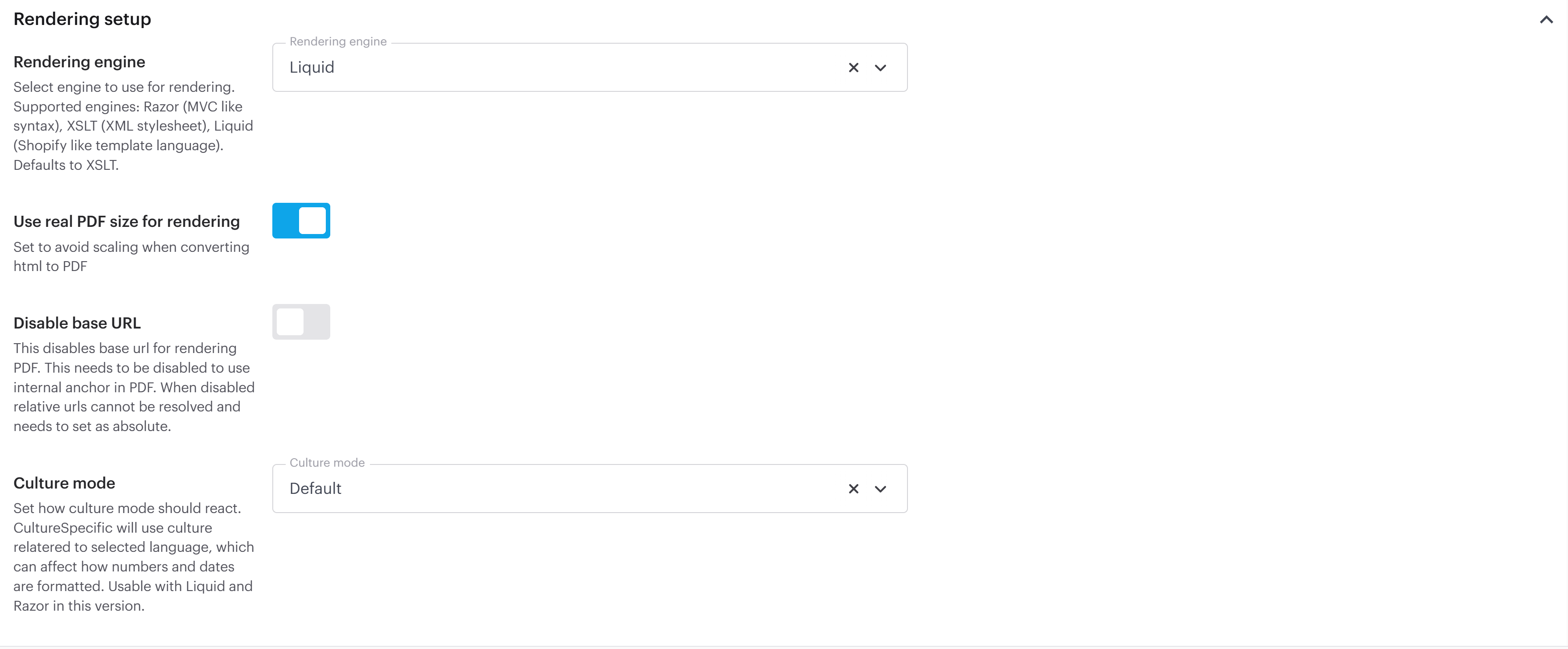
In the 'Rendering setup', set the rendering engine to 'Liquid' and enable the 'Use real PDF size for rendering' option. Set the culture mode to 'Default'.

The rendering setup for the publication template

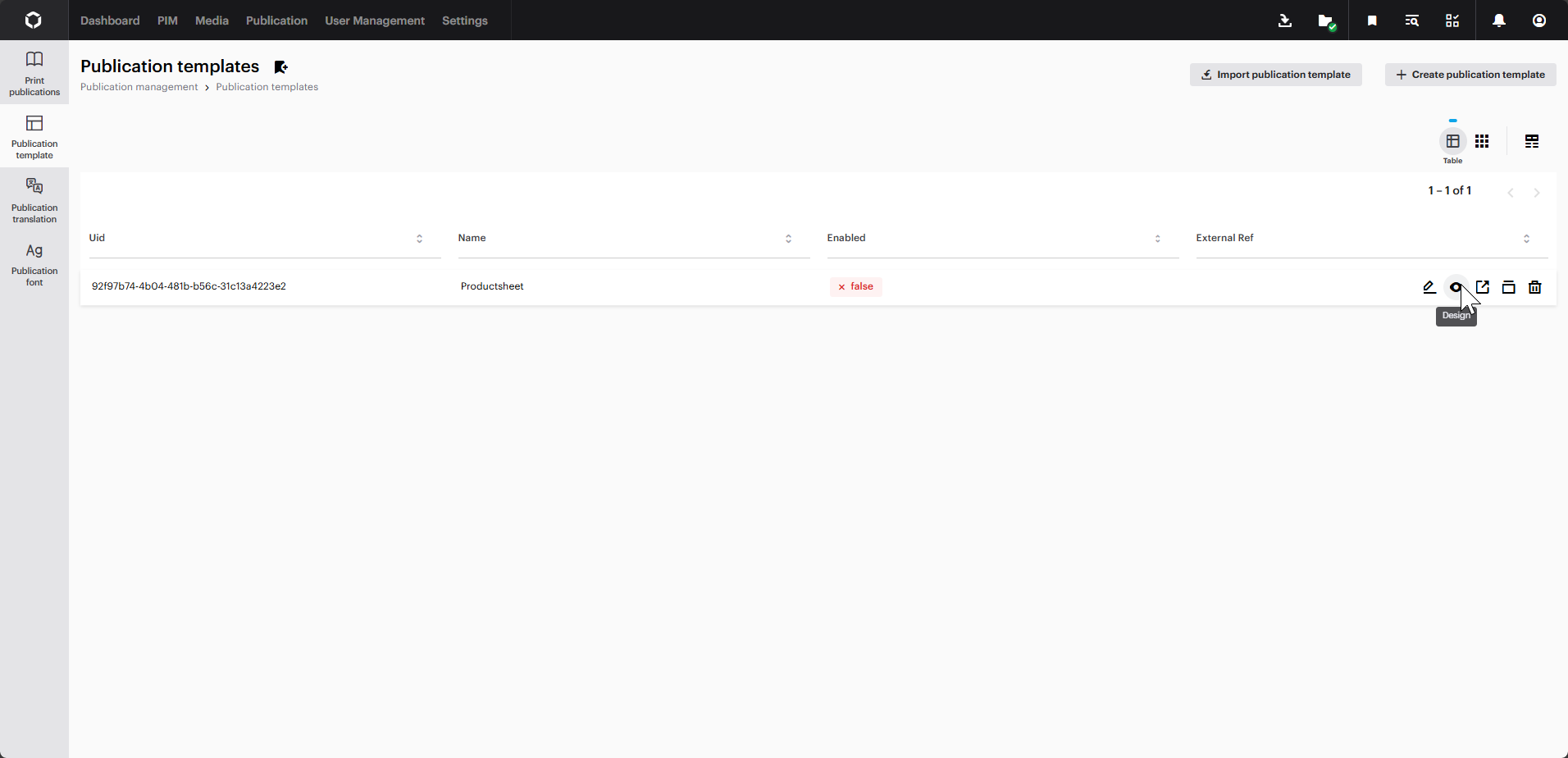
Click save, head out to the 'Publication template' page, and click the eye-icon on the new template.

The publication template overview

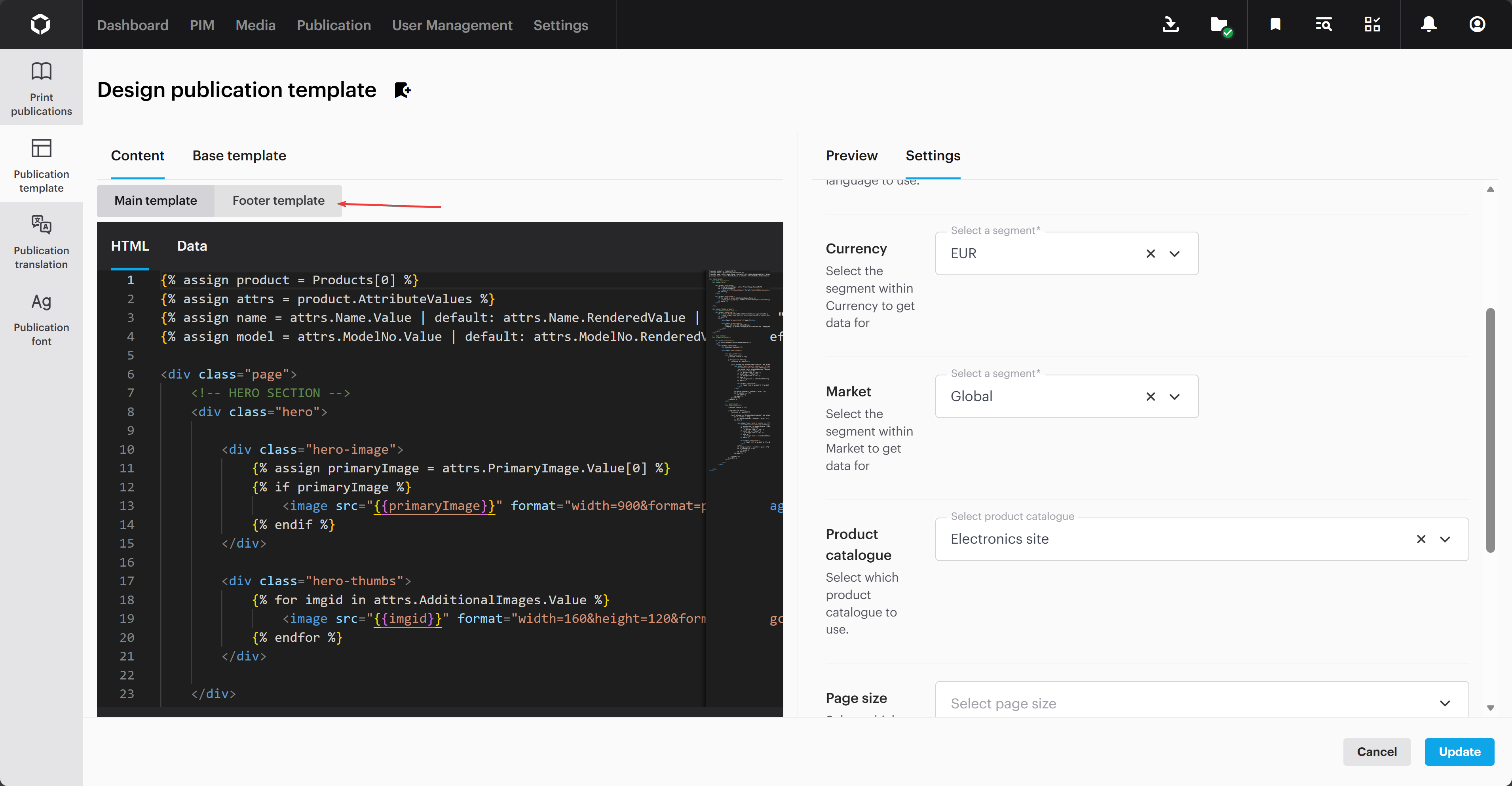
This will take you to the designer, where we will be able to design the layout and logic of our publication.

Designing the template

The following template has been created with Liquid, HTML and CSS. You can read more about Liquid and how to use it here.

To start off, we will be defining the template layout for the publication.

If you want to learn more about how to use the designer, you can read about it here.

A footer can be used for many things and can contain a few different elements. We want to display the date the publication was generated. To do this, click on 'Footer template' inside the 'Content'-window.

Inside the template designer

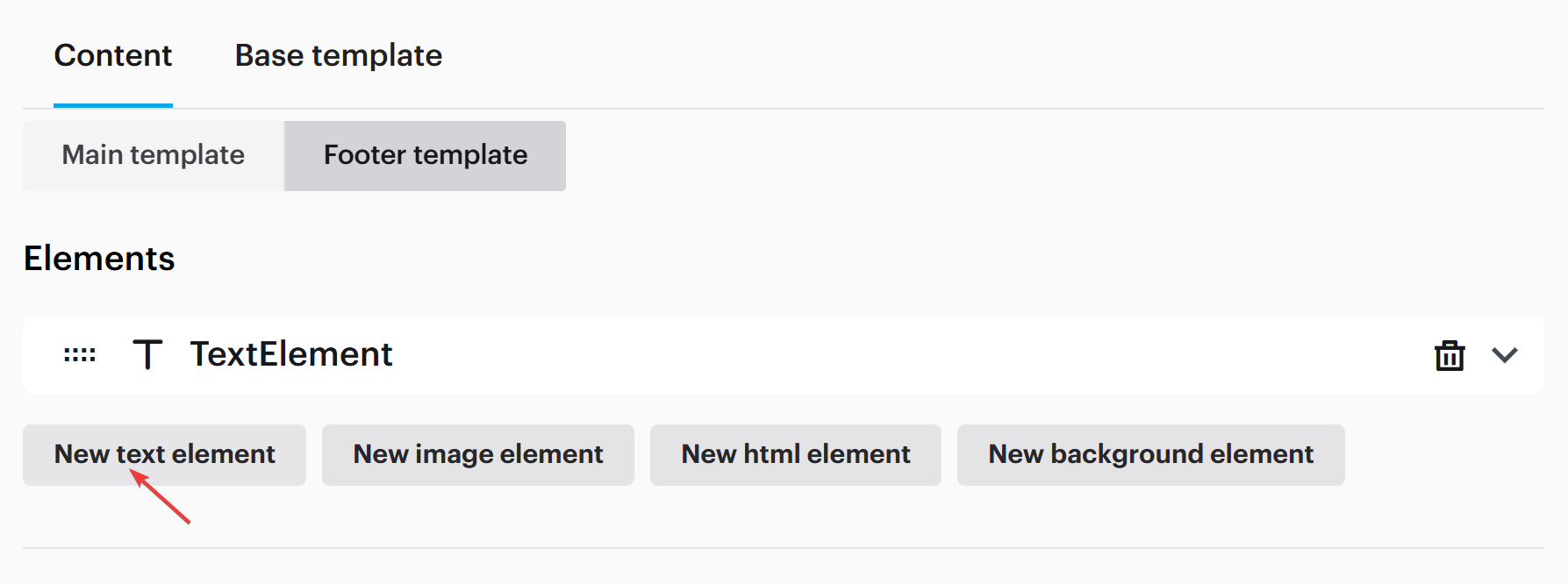
In the footer tab, you are able to add different elements to the footer. To display the date of when the publication was generated, add a new text element.

The content tab where you can add elements to the footer

Inside it, scroll down to the 'Text'-field, and insert the following snippet.

This will place a footer element that displays the date for when the publication was generated.

The final result

Putting it all together, the result will look like this.

The final result rendered from the publication template

Last updated