# How to work with translation

### Working with translation

Using Struct PIM, translating and customizing your product information for different languages is easy. By turning on translation mode, you can tweak details like names and descriptions to match local languages and cultures. This makes your products look and feel right for people everywhere, improving their experience. It's not just about converting words; it is about making sure your product fits expectations wherever it is shown.

Struct PIM simplifies translation management through [localization](https://docs.struct.com/fundamental-concepts/localization-and-segmentation). While creating attributes you can enable localization to support multiple languages efficiently. When localization is enabled on an attribute, a little flag will appear in the top right corner of the field.

<figure><img src="https://2141378775-files.gitbook.io/~/files/v0/b/gitbook-x-prod.appspot.com/o/spaces%2FuUonpFWM7AJ0xVVXV1tr%2Fuploads%2FNXBmdFyUE3EPrqkuQhCv%2Fimage.png?alt=media&#x26;token=17be710b-1cae-4507-8bc7-d491800af38d" alt=""><figcaption></figcaption></figure>

### Enabling translation mode

You can add translations to a lot of different entities. In this guide, we will show you how to add translations to product attributes and global list values.

#### Products

First, navigate to any product that you would like to add translation to. To translate product attributes, ensure that the product is using a product structure with localized fields.

Navigate to the top-right menu on the product page and click the 'Enable Translation mode' icon.

<figure><img src="https://2141378775-files.gitbook.io/~/files/v0/b/gitbook-x-prod.appspot.com/o/spaces%2FuUonpFWM7AJ0xVVXV1tr%2Fuploads%2FGaVbnTcvV2pLXQsLVG8e%2Fimage.png?alt=media&#x26;token=0674fe7d-7dff-42db-af04-a2c4e6ac85e6" alt=""><figcaption></figcaption></figure>

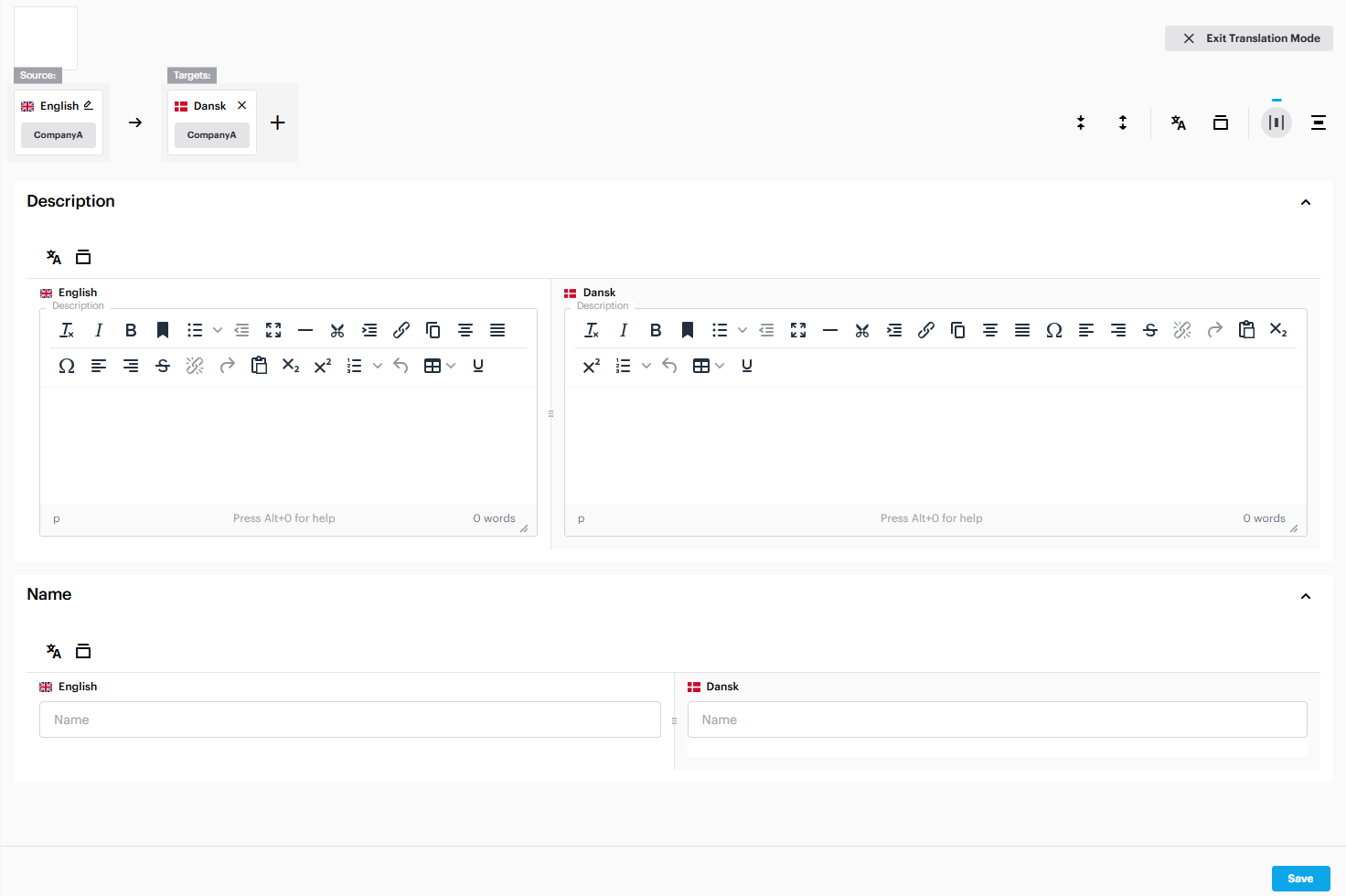
Clicking it will enable translation mode, allowing you to translate the product's localized fields.

<figure><img src="https://2141378775-files.gitbook.io/~/files/v0/b/gitbook-x-prod.appspot.com/o/spaces%2FuUonpFWM7AJ0xVVXV1tr%2Fuploads%2F4gxbWPBZnOZnc2dyKCUV%2Fimage.png?alt=media&#x26;token=3bb17831-8f9c-4c6a-b51b-90530dda2202" alt="The translation viewer that appears after enabling translation mode"><figcaption><p>Inside translation mode</p></figcaption></figure>

#### Global lists

To enable translation mode for global lists, navigate to 'PIM' > 'Global lists'. Select the global list you want to add translation to.&#x20;

<figure><img src="https://2141378775-files.gitbook.io/~/files/v0/b/gitbook-x-prod.appspot.com/o/spaces%2FuUonpFWM7AJ0xVVXV1tr%2Fuploads%2FyZ42dfG1Eqctwb26J6zP%2Fimage.png?alt=media&#x26;token=30be2ee1-4587-4b8a-99d1-360df0b24e38" alt="Image of how the Global lists side bare looks like"><figcaption><p>Global lists</p></figcaption></figure>

You will be presented with the values of that specific global list.

<figure><img src="https://2141378775-files.gitbook.io/~/files/v0/b/gitbook-x-prod.appspot.com/o/spaces%2FuUonpFWM7AJ0xVVXV1tr%2Fuploads%2Fc2QyPu0GYcNnADzyfNuC%2Fimage.png?alt=media&#x26;token=639030bd-7b3f-4bb6-a233-729705ae2f98" alt="The global lists"><figcaption><p>Inside the global list 'Brands'</p></figcaption></figure>

Just like with products, you can click on the individual global list values, and then click 'Enable translation mode' in the top right menu.

<figure><img src="https://2141378775-files.gitbook.io/~/files/v0/b/gitbook-x-prod.appspot.com/o/spaces%2FuUonpFWM7AJ0xVVXV1tr%2Fuploads%2F1hmQRr2I8ypelsW2cHRR%2Fimage.png?alt=media&#x26;token=820a8aad-e10b-4992-b675-5b65c4e11448" alt=""><figcaption><p>Editing a global list value</p></figcaption></figure>

### Adding translations in translation mode

When translation mode is enabled, you will see the fields on the entity that can be translated.

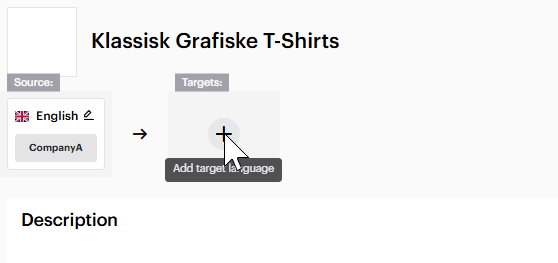
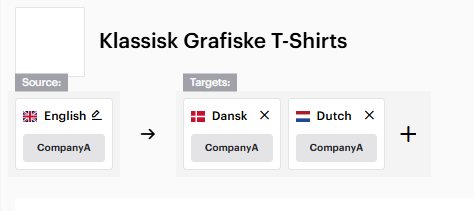
Inside translation mode, you can select multiple target languges that you would like to translate to. If you do not have any languages to translate to, you can add them in 'Settings' > 'Languages'.

<figure><img src="https://2141378775-files.gitbook.io/~/files/v0/b/gitbook-x-prod.appspot.com/o/spaces%2FuUonpFWM7AJ0xVVXV1tr%2Fuploads%2FMi8wLDxcHjtnkOTU6c1D%2Fimage.png?alt=media&#x26;token=ca7e84ab-1f13-4824-946a-f1abc49a6a1c" alt="The target language selector"><figcaption><p>The target language selector</p></figcaption></figure>

Select the language(s) that you would like to translate to.

<figure><img src="https://2141378775-files.gitbook.io/~/files/v0/b/gitbook-x-prod.appspot.com/o/spaces%2FuUonpFWM7AJ0xVVXV1tr%2Fuploads%2FiCYC1pnTAgd0hXQCvPfi%2Fimage.png?alt=media&#x26;token=96c32a6e-098e-4f0c-bc11-b1eecc8aa190" alt="Multiple target languages"><figcaption><p>Multiple target languages</p></figcaption></figure>

Upon selecting a language, new fields will appear below to the right of the source language. These fields are where you can add the translation for the target language.

<figure><img src="https://2141378775-files.gitbook.io/~/files/v0/b/gitbook-x-prod.appspot.com/o/spaces%2FuUonpFWM7AJ0xVVXV1tr%2Fuploads%2Fi4af5nkQxmJlVJ9oFJOJ%2Fimage.png?alt=media&#x26;token=3e02e0a6-d612-4dde-82ba-6e11dc7c1bca" alt="New fields appear after selecting target languages"><figcaption><p>New fields appeared after setting target languages</p></figcaption></figure>

### Adjusting the layout

Inside translation mode, you can easily adjust the layout of the fields by clicking one of the two buttons in the top right menu. You have two options: vertical or horizontal.

<figure><img src="https://2141378775-files.gitbook.io/~/files/v0/b/gitbook-x-prod.appspot.com/o/spaces%2FuUonpFWM7AJ0xVVXV1tr%2Fuploads%2Fo7UYeYBugxUeLpedVyrE%2Fimage.png?alt=media&#x26;token=4140a4e3-f548-4411-9d2a-c5c2ec707788" alt="The two buttons that you can use to adjust the layout"><figcaption><p>The two buttons you can use to adjust the layout</p></figcaption></figure>

We would like to stack the fields on top of each other, so we select the vertical layout.

<figure><img src="https://2141378775-files.gitbook.io/~/files/v0/b/gitbook-x-prod.appspot.com/o/spaces%2FuUonpFWM7AJ0xVVXV1tr%2Fuploads%2FgHJlmz5ao0rA9j5YjJ5j%2Fimage.png?alt=media&#x26;token=d4a76ca8-0dda-4d5c-965c-a642c5e70387" alt="The translation fields have been stacked on top of each other"><figcaption><p>The fields are now stacked on top of each other</p></figcaption></figure>

### Using AI to translate

You can use AI to translate for you. If you have set up the [AI Assistant](https://docs.struct.com/reference/settings/ai-assistant/translation), you can speed up your translation process even further. All it needs is a source language translation.

When you have it set up, you can click the 'Auto translate all attributes'.

<figure><img src="https://2141378775-files.gitbook.io/~/files/v0/b/gitbook-x-prod.appspot.com/o/spaces%2FuUonpFWM7AJ0xVVXV1tr%2Fuploads%2FrI9xQa3QYE87wU3JLB3N%2Fimage.png?alt=media&#x26;token=ea3d471d-a5e3-487e-ace3-cd613c804cef" alt=""><figcaption></figcaption></figure>

1\) Will add auto translation to the specific attribute.

2\) Will add auto translation to all attributes.