> For the complete documentation index, see [llms.txt](https://docs.struct.com/llms.txt). Markdown versions of documentation pages are available by appending `.md` to page URLs; this page is available as [Markdown](https://docs.struct.com/tutorials/guides/how-to-use-product-structures/how-to-set-up-a-variant-group-model.md).
# How to set up a variant group model
A guide to set up a variant group model
## Setting up variant group model
To set up a variant group model, you need to add it to an existing product structure that has variants, either when editing it or during the setup. For this example, we will be using the product structure "Demo Structure" from the tutorial [How to set up and edit a product model](/tutorials/guides/how-to-use-product-structures/how-to-set-up-and-edit-a-product-model.md), which was also updated to contain the variant model in the tutorial [How to set up a variant model](/tutorials/guides/how-to-use-product-structures/how-to-set-up-a-variant-model.md).
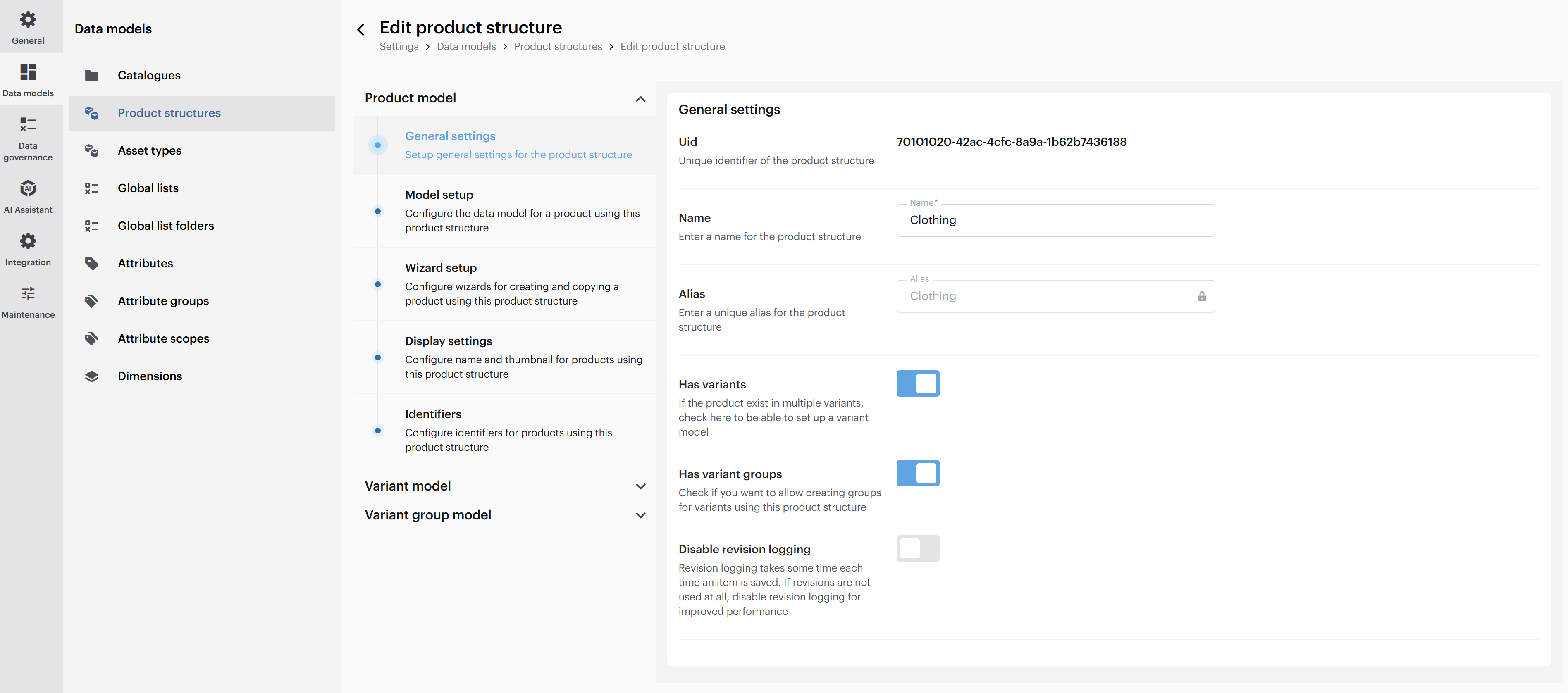
General settings
When configuring the product model, toggle the "Has variant groups" option to enable the variant group model in the product structure. A new variant group model option will appear under the variant model configurations.
Click on the variant group model title to expand and view the various setup options and navigate to "Model setup".
### Model setup
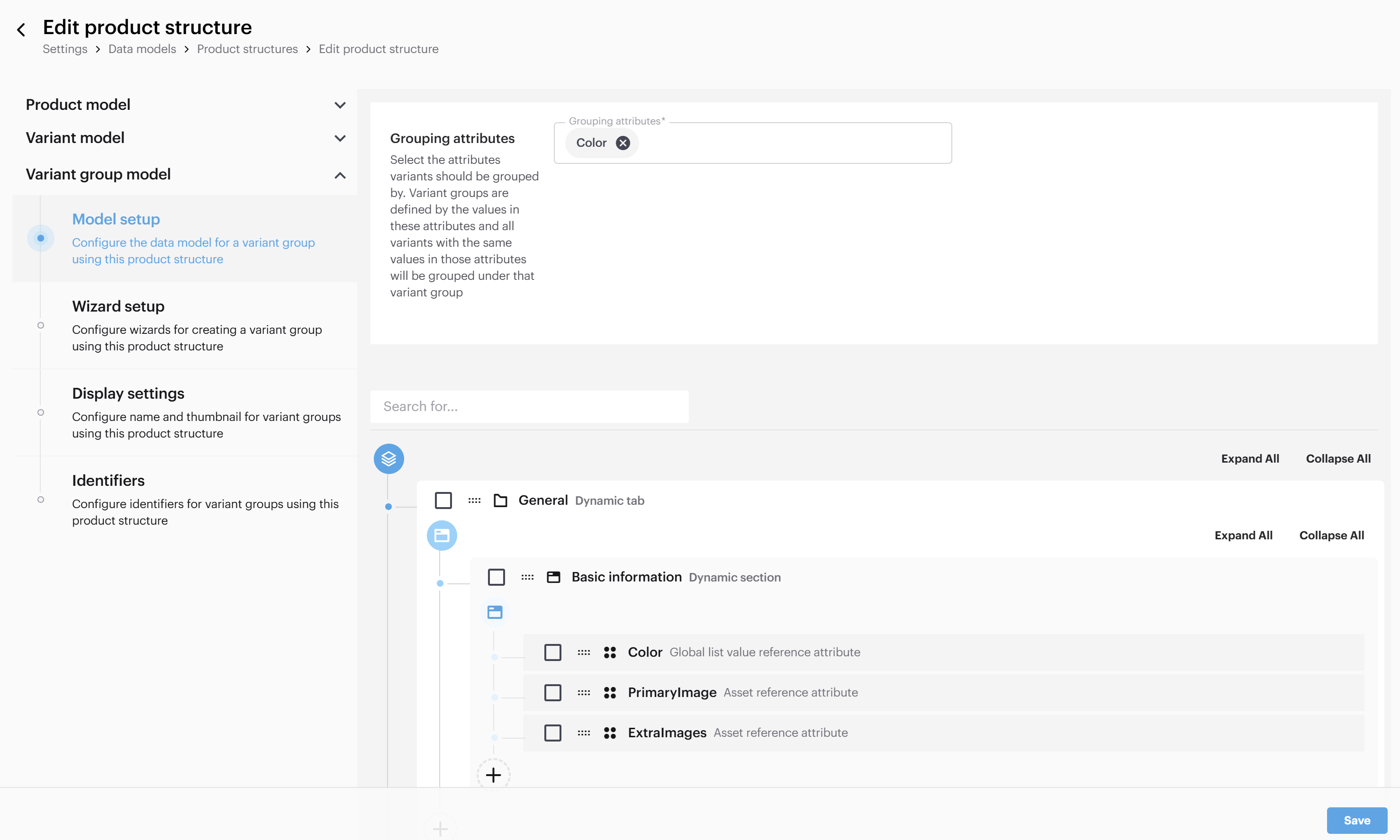
Variant group data model setup
When creating a data model for variant groups, the process is similar to setting up a variant or product model. The key distinction is that you need to specify grouping attributes. In the example above we are grouping based on the color of the variants.
Follow the same setup process detailed in the previous guides. Consult the [product model guide](/tutorials/guides/how-to-use-product-structures/how-to-set-up-and-edit-a-product-model.md#model-setup) or the [variant model guide](/tutorials/guides/how-to-use-product-structures/how-to-set-up-a-variant-model.md#model-setup) for more information.
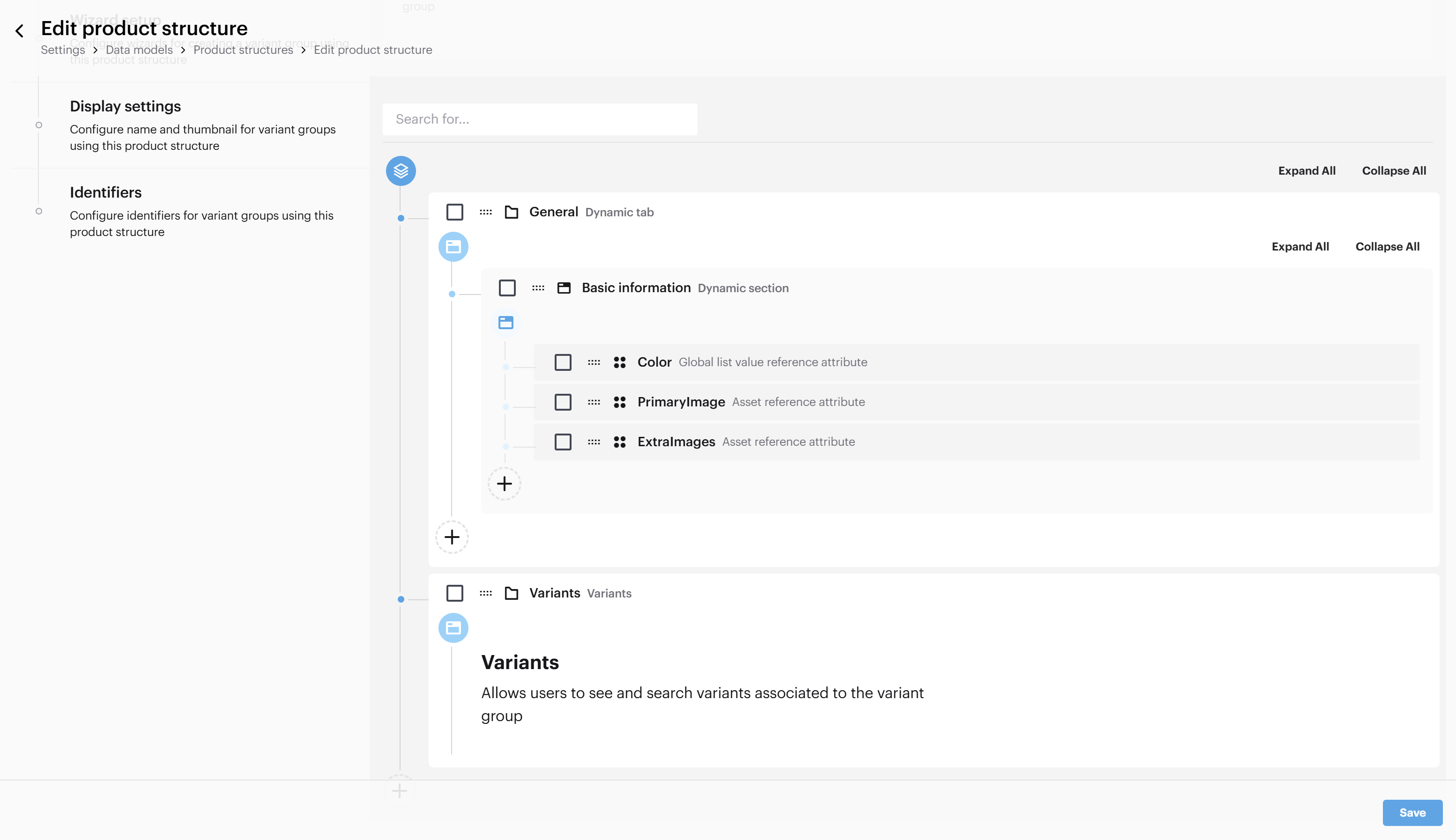
Added tab - Variants
You can add a "Variants" tab, as shown in the example above, to easily view different variants within the selected variant group.
Once the data model has been configured you can proceed to wizard setup.
### Wizard setup
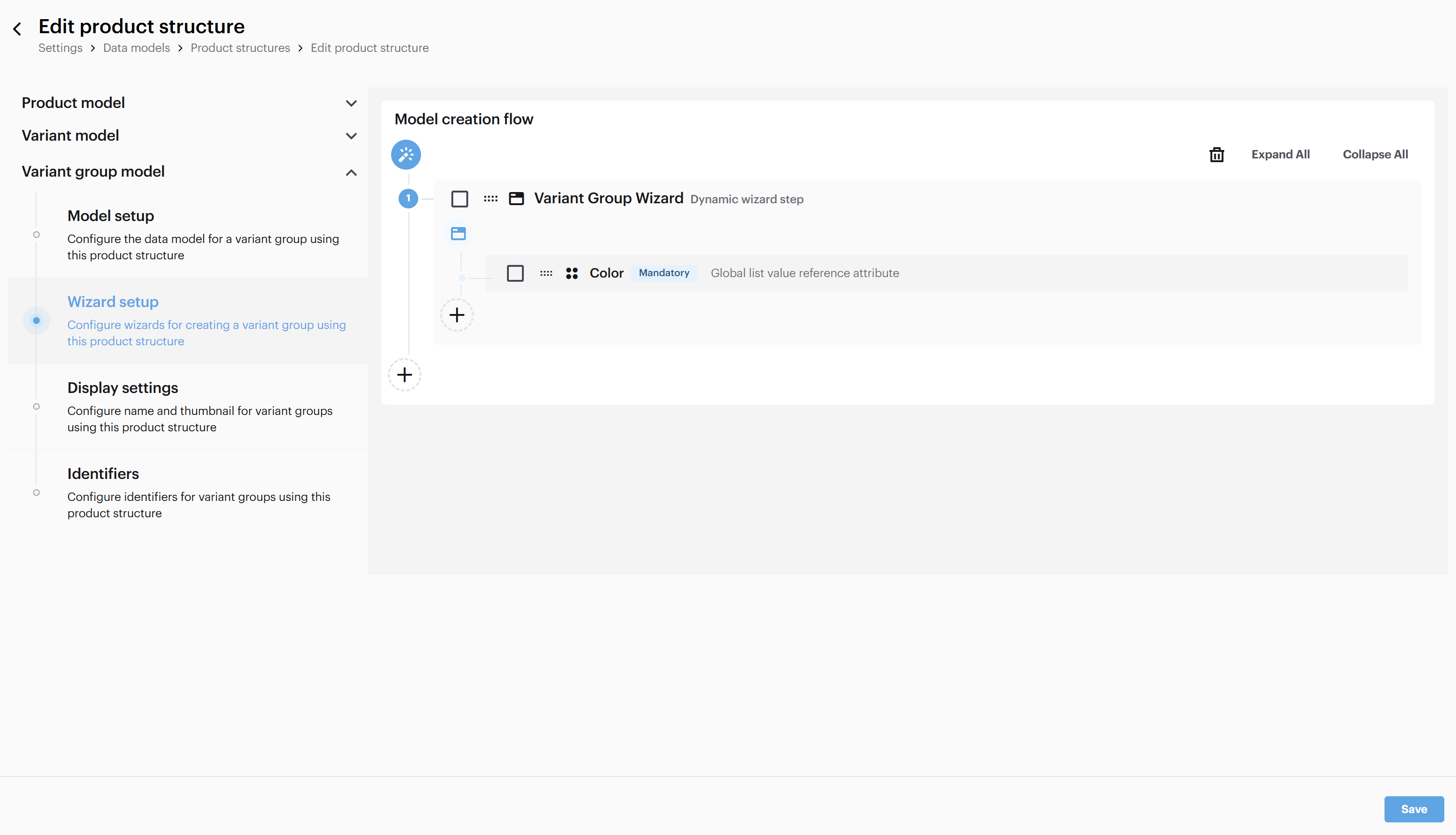
Wizard setup
Just like when setting up a product model or variant model, the wizard setup is optional. However, it can be beneficial to others using the PIM when needing to add or copy new entities. As with the variant model, you only have the option to set up a "Model creation flow" to guide users when creating a new variant group.
In the example above color has been set as mandatory in the wizard step, as it is used as an grouping attribute and therefore needed.
Configuring a wizard setup in a variant group model, is done the same way as for the [product model](/tutorials/guides/how-to-use-product-structures/how-to-set-up-and-edit-a-product-model.md#wizard-setup).
Once done with the wizard setup the next setup is display settings.
### Display settings
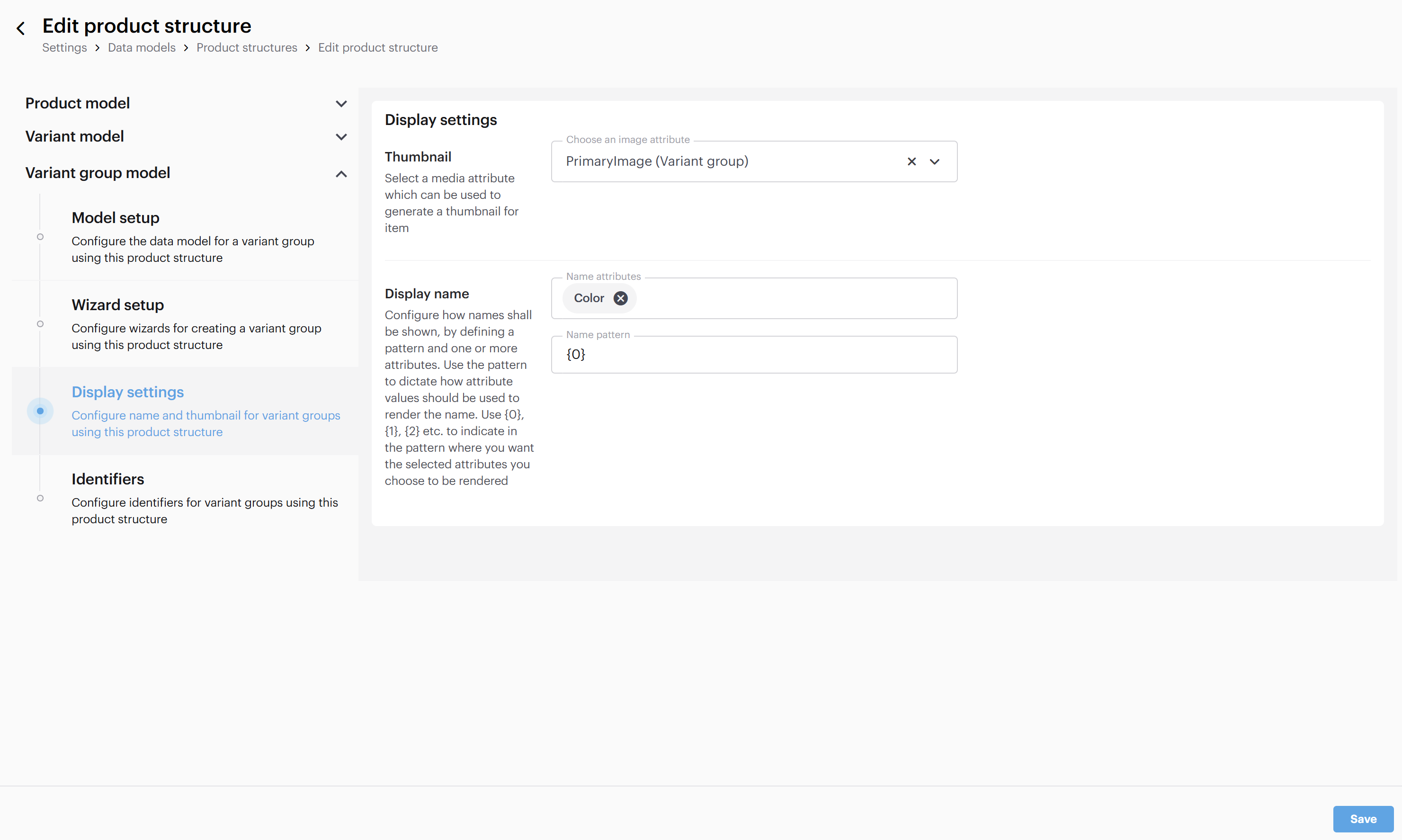
Display settings setup
The setup of display settings in the variant group model is done the same way as the [product model](/tutorials/guides/how-to-use-product-structures/how-to-set-up-and-edit-a-product-model.md#display-settings).
In the example above, thumbnails are generated using the PrimaryImage attribute, and the display name is rendered from the color attribute.
The next and final step in the setup of variant group model is identifiers.
### Identifiers
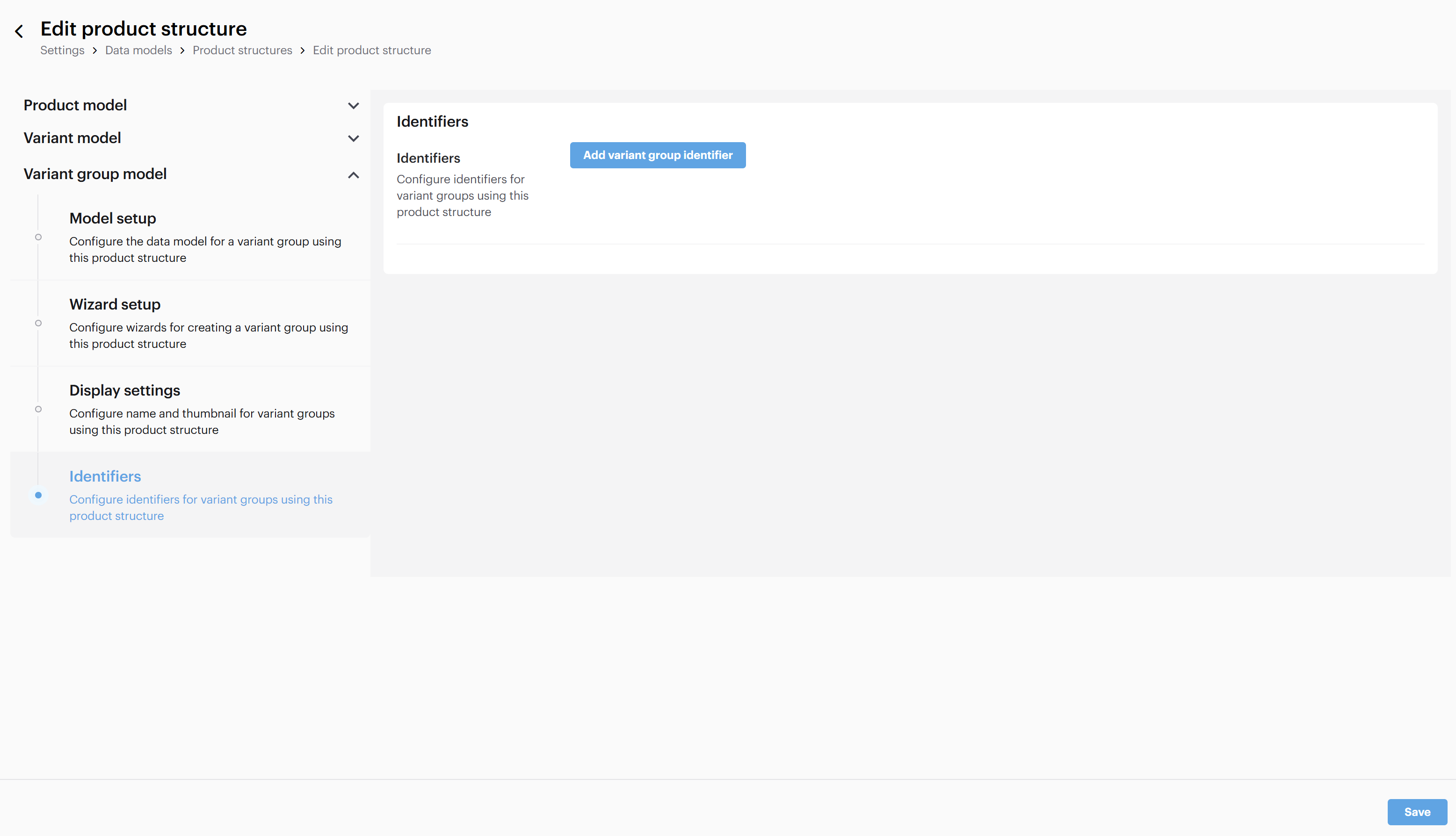
Identifiers setup
Identifiers can uniquely identify each variant group, similar to the product and variant models. The setup process is identical to previous models and remains optional. For further details, refer to either the [product model tutorial](/tutorials/guides/how-to-use-product-structures/how-to-set-up-and-edit-a-product-model.md#identifiers).
---
# Agent Instructions
This documentation is published with GitBook. GitBook is the documentation platform designed so that both humans and AI agents can read, navigate, and reason over technical content effectively. Learn more at gitbook.com.
## Querying This Documentation
If you need additional information that is not directly available in this page, you can query the documentation by asking a question.
Perform an HTTP GET request on the following URL with the `ask` and `goal` query parameters:
```
GET https://docs.struct.com/tutorials/guides/how-to-use-product-structures/how-to-set-up-a-variant-group-model.md?ask=&goal=
```
`ask` is the immediate question: it should be specific, self-contained, and written in natural language.
`goal` is what the user is ultimately trying to achieve, the reason they need the answer. Sharing it helps GitBook give you a better, more relevant answer. A goal is most helpful when it describes the outcome the user wants rather than restating the question. For example, with `ask=how do I create an API token`, a goal like `automate deployments from our CI pipeline` lets GitBook tailor the answer to that use case.
The response will contain a direct answer to the question and relevant excerpts and sources from the documentation.
Use this mechanism when the answer is not explicitly present in the current page, you need clarification or additional context, or you want to retrieve related documentation sections.