For the complete documentation index, see llms.txt. This page is also available as Markdown.

How to set up an Entra ID connection

Where Microsoft Entra ID lives in Struct, and how to configure a connection, its access scope, its group mappings and the two access policies.

A connection represents one Entra directory. It has a name of your choosing for display in Struct, the directory's Tenant ID, and a decision about who it admits.

Identifiers, directory names and user details in the screenshots throughout this guide are examples. Real values have been replaced or blurred.

Where it lives in Struct

  1. Open Settings from the top navigation.

  2. In the Integration column, choose Microsoft Entra ID.

Settings → Integration → Microsoft Entra ID. The entry sits in the Integration column of the system settings overview, alongside API configuration and Webhooks.
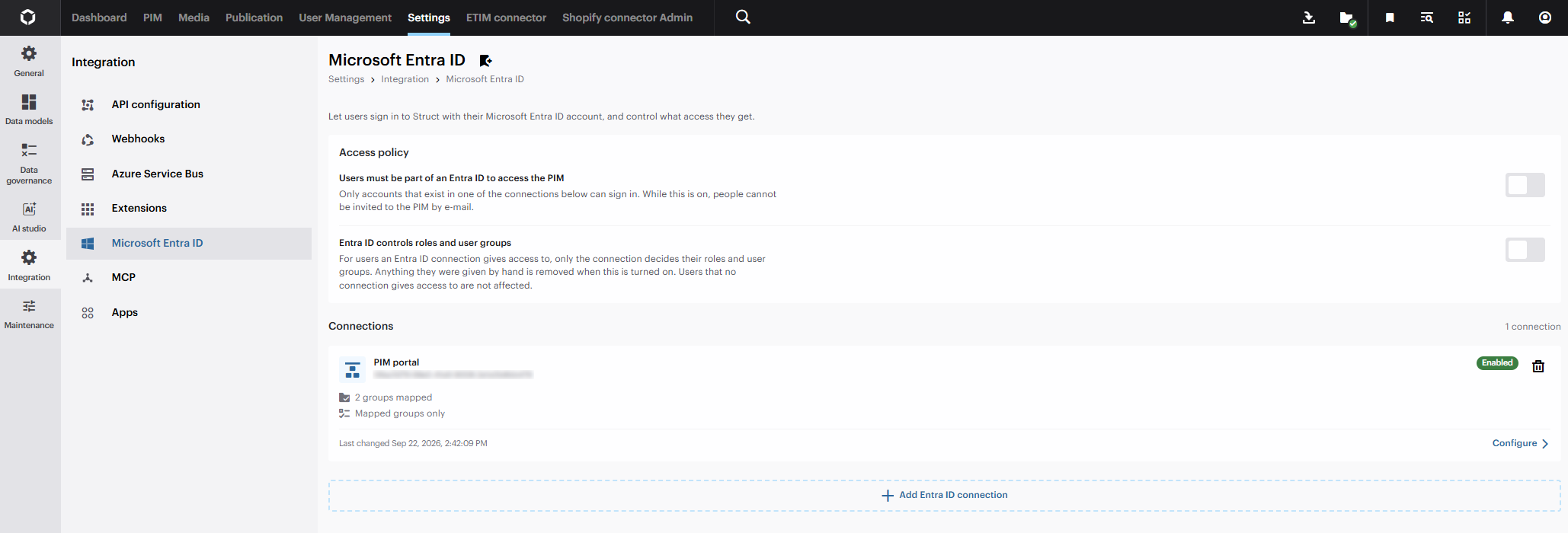
The page that opens holds everything described on this page. Access policy is at the top, and Connections below it. Each connection appears as a card showing its name, whether it is enabled, how many groups it maps and how it is scoped, and when it was last changed. Configure opens it, and Add Entra ID connection creates another.

The Microsoft Entra ID page. The card below the access policies shows a connection named PIM portal: enabled, two groups mapped, and scoped to Mapped groups only.

The connection

Opening a connection shows the Directory settings first.

Connection name. Struct's helper text: "The name shown on the connection card here in Struct. It is not read from Entra ID." Choose something your colleagues will recognise.

Tenant ID. The ID of the Entra directory whose groups should grant access to this Struct PIM, copied as described in How to find the IDs in Entra ID. Struct also offers Use my signed-in account's tenant, which fills this in from the Microsoft account you are signed in with — the quickest route when you are configuring Struct for your own directory.

Set-up checklist. A short reminder of what to do in Entra ID, repeating in one place the steps that How to find the IDs in Entra ID covers in full.

Enabled. On by default. Turning it off pauses the connection, which is covered in Pausing a connection below.

The Directory settings on an existing connection. The Tenant ID is fixed once the connection has been created, so it is shown here as read-only.

Who the connection admits — two modes

The Access scope setting decides this. There are two modes.

Everyone in the organisation. Turn on Everyone in the organisation has access to Struct. Any user in that directory can sign in. Anyone who matches no group mapping receives the connection's Defaults for unmapped users, set as Default user groups and Default roles. Use this when the whole company should reach Struct at some baseline level. The connection card then shows Whole organisation has access.

Mapped groups only. Leave that setting off and only members of the groups you map can sign in through this connection. Use this when Struct is for a defined team. The connection card shows Mapped groups only.

Both modes can carry group mappings. The difference is only what happens to someone who matches none of them: in the first mode they get the defaults, in the second they are not admitted at all.

Group mappings

Mappings are the heart of the configuration. Put plainly:

Map each Entra ID group to Struct roles and user groups. Members receive these permissions when they sign in.

Each mapping is one Entra group object ID plus the Struct roles and user groups its members receive. Under Group mappings, Add Entra ID group adds a row, and each row carries the group's ID and name together with its User groups and Roles.

The group ID is what Struct matches against, and it must be the group's Object ID from How to find the IDs in Entra ID. The group name is a label you type for your own reference in Struct. Like the connection name, it is not read from Entra ID, so nothing breaks if the group is later renamed in your directory — but nothing updates either. Use the same name as the Entra group, and the two stay easy to reconcile.

Access scope and Group mappings on the same screen. Two Entra groups are mapped here: one to the System Administrator role and the DACH users group, one to Translator and Nordic users.
  • A mapping must grant at least one role or one user group. An empty mapping does nothing and is not accepted.

  • A user in several mapped groups receives the union of what those mappings grant. Nothing is subtracted for being in more than one.

Two optional policies

Two settings under Access policy tighten how far the integration reaches. They are tenant-wide rather than per connection, and they are independent. You can use either without the other.

"Users must be part of an Entra ID to access the PIM"

Only people admitted by a connection can sign in. While it is on, people cannot be invited to Struct by e-mail. Anyone already in Struct who is not admitted by a connection loses access at their next sign-in. Struct will refuse to turn this on if doing so would lock out the person switching it on.

"Entra ID controls roles and user groups"

For users a connection admits, only the connection decides their roles and user groups. They can no longer be edited by hand in Struct. Users that no connection admits are unaffected. Struct shows you how many users this will affect and asks you to confirm.

Pausing a connection

Turning Enabled off stops a connection without unpicking it. The connection card then shows Paused. Struct describes the effect as:

A paused connection stops acting entirely: nobody new is given access, changes to groups in the directory are not picked up, and the roles and user groups it granted can be changed by hand again. Everyone it has already given access to keeps it.

Use it when you want a connection to stop acting but do not want to disturb the access it has already handed out. It is the safe way to take a connection out of play while you work something out.

Deleting a connection

Deleting is different from pausing. The Delete connection dialog asks how to treat the people the connection brought in, and offers two answers.

Keep access. Users keep their current roles and user groups. They become normal manually managed assignments.

Remove access. Roles and user groups granted by this connection are removed. Users it brought in who are left with nothing are removed from the tenant entirely.

Struct tells you how many users each choice affects before you confirm.

Last updated