> For the complete documentation index, see [llms.txt](https://docs.struct.com/llms.txt). Markdown versions of documentation pages are available by appending `.md` to page URLs; this page is available as [Markdown](https://docs.struct.com/tutorials/guides/how-to-use-azure-service-bus/how-to-set-up-authorization-on-azure-service-bus-and-blob-storage.md).

# How to set up authorization on Azure Service Bus and Blob Storage

## How to set up Connection String authorization for Azure Service Bus and Blob Storage

Connection String authorization allows Struct to authenticate directly against Azure Service Bus and Azure Blob Storage using Azure connection strings. Navigate to Settings > Integration > Azure Service Bus.

<figure><img src="/files/6B1Fasc6epoJcjK2CIbn" alt=""><figcaption><p>Azure Service Bus overview</p></figcaption></figure>

Open an existing Azure Service Bus connection or click Create Azure Service Bus.

### Azure Service Bus

Under Service Bus authorization, select Connection string.

<figure><img src="/files/FFvVQiCvfSNUTxCfEa0k" alt=""><figcaption><p>Azure Service Bus setup page</p></figcaption></figure>

#### Azure Service Bus

The connection string is used to authenticate against Azure Service Bus.

You can find the connection string in the Azure portal by opening your Service Bus Namespace and navigating to Settings > Shared access policies. Select an existing policy, or create a new one with Send permissions, and copy the Primary Connection string.

<figure><img src="/files/nSL4j27gC0b5U9LTuOlN" alt=""><figcaption><p>Service Bus Namespace - Shared access policies</p></figcaption></figure>

#### Queue Name

You can find your configured queues in the Azure portal by opening your Service Bus Namespace and navigating to Entities > Queues. Select the queue that Struct should publish messages to and copy its name.

<figure><img src="/files/IcPz9p3GqQZQWdzNDYej" alt=""><figcaption><p>Service Bus Namespace - Queues</p></figcaption></figure>

### Blob Storage

Under Blob Storage authorization, select Connection string.

<figure><img src="/files/hWzDFJTEZCHxwHOxBUSQ" alt=""><figcaption><p>Blob storage setup page</p></figcaption></figure>

#### Blob Storage Connection string

The connection string used to authenticate against Blob Storage.

You can find the connection string in the Azure portal by opening your Storage Account and navigating to Security + networking > Access keys. Copy one of the available Connection strings.

<figure><img src="/files/N0OOhmdmUA9s6XmvVb3b" alt=""><figcaption><p>Storage account - Access keys</p></figcaption></figure>

#### Blob Container Name

The Blob Storage container that Struct uses to store event payloads.

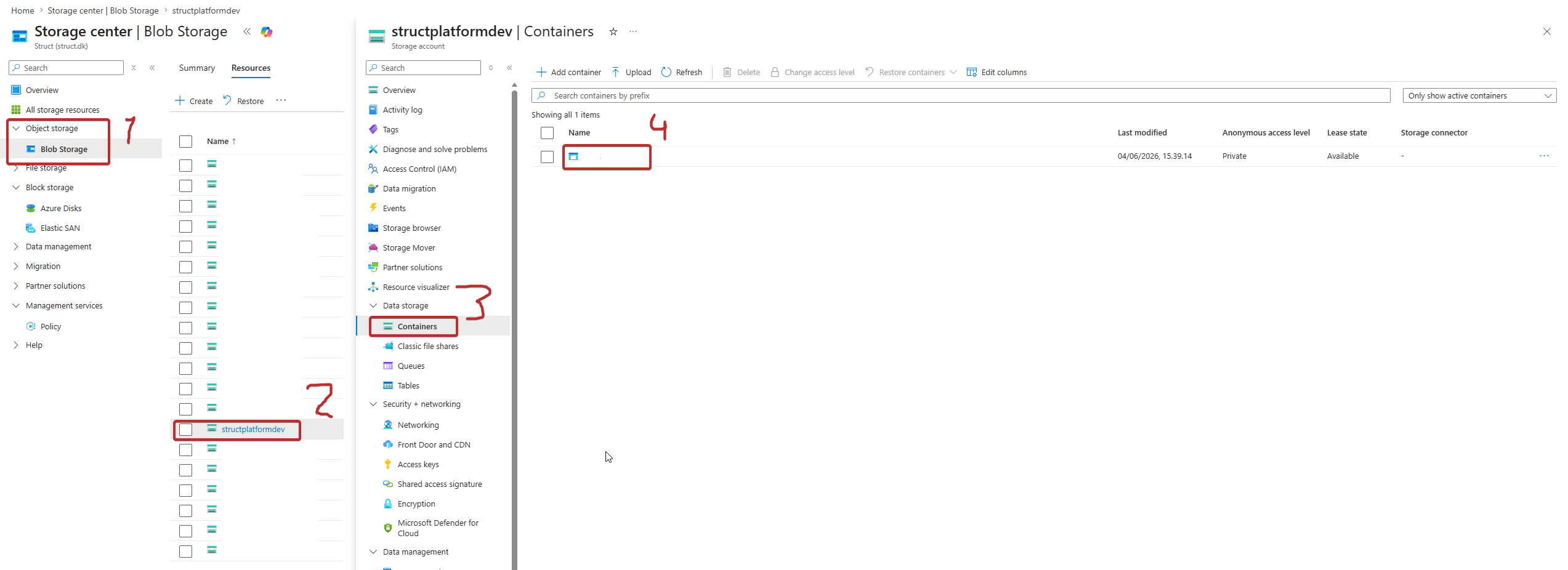
You can find your configured containers in the Azure portal by opening your Storage Account and navigating to Data storage > Containers. Select the container that Struct should use and copy its name.

<figure><img src="/files/4CdgmJvgBdmn2uKKgKcX" alt=""><figcaption><p>Storage account - Containers</p></figcaption></figure>

After entering the required settings, click Test connection to verify that Struct can connect to both Azure Service Bus and Blob Storage.

If the connection test succeeds, click Save.

## How to set up Entra ID authorization on Azure Service Bus and Blob Storage

### Azure Service Bus

Before configuring the connection in Struct, make sure you have registered an application in Microsoft Entra ID and created a Client Secret. You will need the Tenant ID, Client ID, and Client Secret when configuring authentication for Azure Service Bus and Blob Storage.

To configure an Azure Service Bus connection, navigate to Settings > Integration > Azure Service Bus.

<figure><img src="/files/4GrQT0C95Eaett3Fdg3f" alt=""><figcaption><p>Azure Service Bus overview</p></figcaption></figure>

From here, you can edit or delete service buses. To create a new service bus, click the "Create Azure Service Bus"-button.

<figure><img src="/files/NspSJZp20nAQvKALX8Ox" alt=""><figcaption><p>Azure Service Bus setup page</p></figcaption></figure>

Under "Service Bus authorization", select the option "Service Principal (Entra ID)" and enter the following information:

#### **Fully Qualified Namespace**

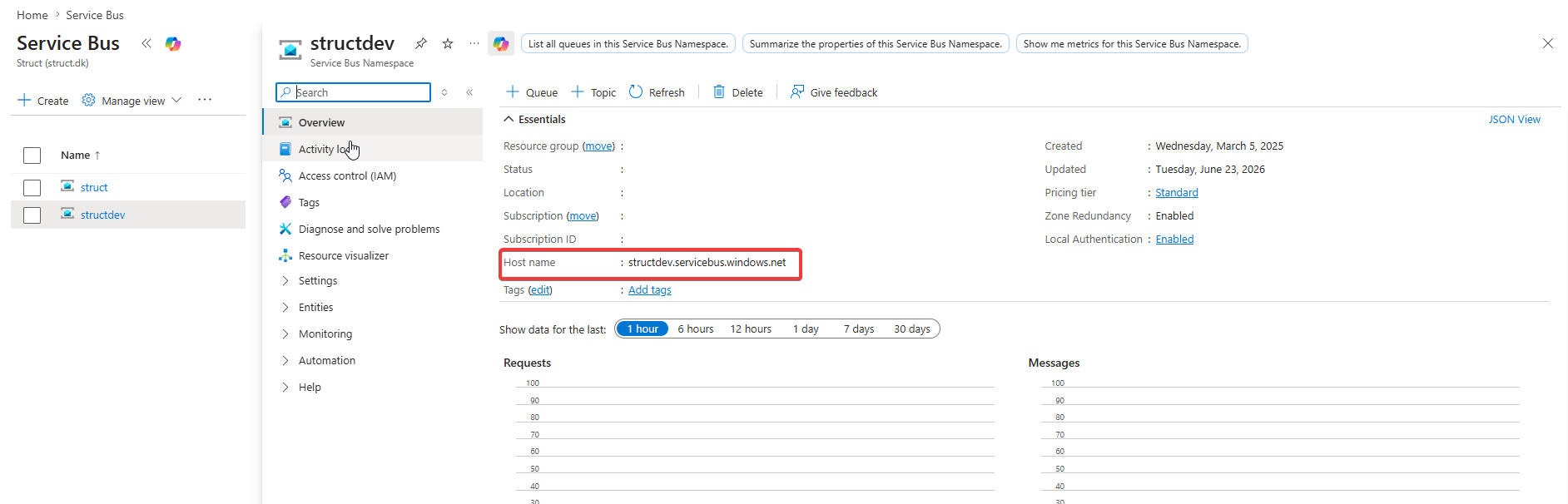
You can find the Fully Qualified Namespace in the Azure portal by opening your Service Bus Namespace and navigating to Overview, where you can locate and copy the Host name value.

<figure><img src="/files/TeLlAOTbBFM30ltsXvmU" alt=""><figcaption><p>Service Bus Namespace Overview</p></figcaption></figure>

#### **Tenant ID**

The Tenant ID identifies the Microsoft Entra tenant that contains the registered application. Struct uses this value together with the Client ID and Client Secret to authenticate with Azure.

You can find the Tenant ID in the Azure portal by navigating to Microsoft Entra ID > Overview and copying the Tenant ID value.

<figure><img src="/files/qvsujbueN3bK8CYqex8O" alt=""><figcaption><p>Microsoft Entra ID</p></figcaption></figure>

#### **Client ID**

The Client ID identifies the application that Struct uses when authenticating with Microsoft Entra ID.

You can find the Client ID in the Azure portal by navigating to Microsoft Entra ID > App registrations, opening your registered application, and copying the Application (client) ID from the Overview page.

<figure><img src="/files/1yRmRCvTcRgeupCp9tJf" alt=""><figcaption><p>Application Overview </p></figcaption></figure>

#### **Client Secret**

The Client Secret is the credential associated with the registered application. Struct uses it together with the Tenant ID and Client ID to authenticate with Microsoft Entra ID.

You can create or locate a Client Secret in the Azure portal by navigating to Microsoft Entra ID > App registrations, opening your application, and selecting Certificates & secrets under Manage. If no Client Secret exists, create a new one and copy its value.

<figure><img src="/files/UM4iALDjUzy2KPBeGCcY" alt=""><figcaption><p>Application - Certificates &#x26; secrets</p></figcaption></figure>

#### **Queue Name**

You can find your configured queues in the Azure portal by opening your Service Bus Namespace and navigating to Entities > Queues. Select the queue that Struct should publish messages to and copy its name.

<figure><img src="/files/dHOGkICg87O3xJT8nN7T" alt=""><figcaption><p>Service Bus Namespace - Queues</p></figcaption></figure>

#### Assign role

In the Azure portal, open your Service Bus Namespace and navigate to Access control (IAM). Assign the Azure Service Bus Data Sender role to the registered application that Struct uses for authentication.

<figure><img src="/files/QDuXp4EqvgJyi1BDK8MD" alt=""><figcaption><p>Service Bus Namespace - Access Control</p></figcaption></figure>

Once the role has been assigned, Microsoft Entra ID authorization is correctly configured for Azure Service Bus.

### Blob Storage

Under Blob Storage authorization, select Service Principal (Entra ID).

<figure><img src="/files/F4VxEwFDTLLi9pcfBf6b" alt=""><figcaption><p>Blob storage setup page</p></figcaption></figure>

#### **Blob Service URL**

You can find the Blob Service URL in the Azure portal by opening your Storage Account and navigating to Endpoints and copy the Blob service url.

<figure><img src="/files/SWRHK5Ho7EG1a3GDbVRP" alt=""><figcaption><p>Storage account - Endpoints</p></figcaption></figure>

#### **Tenant ID, Client ID, and Client Secret**

Use the same Tenant ID, Client ID, and Client Secret that were configured for Azure Service Bus. Struct uses the same registered application to authenticate with Azure Blob Storage.

#### **Blob Container Name**

The Blob Container Name specifies the Azure Blob Storage container where Struct stores event payloads.

You can find your configured containers in the Azure portal by opening your Storage Account and navigating to Data storage > Containers. Select the container that Struct should use and copy its name.

<figure><img src="/files/AigVCQN98yFiYEeDzflU" alt=""><figcaption><p>Storage account - Containers</p></figcaption></figure>

#### Assign Role

In the Azure portal, open your Storage Account and navigate to Access control (IAM). Assign the Storage Blob Data Contributor role to the registered application that Struct uses for authentication.

<figure><img src="/files/IZtRFyCew9BlnvBNZPHG" alt=""><figcaption><p>Storage account - Access Control</p></figcaption></figure>

After entering the required settings, click Test connection to verify that Struct can connect to both Azure Service Bus and Blob Storage.

If the connection test succeeds, click the "Save"-button.


---

# Agent Instructions
This documentation is published with GitBook. GitBook is the documentation platform designed so that both humans and AI agents can read, navigate, and reason over technical content effectively. Learn more at gitbook.com.

## Querying This Documentation
If you need additional information that is not directly available in this page, you can query the documentation dynamically by asking a question.

Perform an HTTP GET request on the current page URL with the `ask` query parameter, and the optional `goal` query parameter:

```
GET https://docs.struct.com/tutorials/guides/how-to-use-azure-service-bus/how-to-set-up-authorization-on-azure-service-bus-and-blob-storage.md?ask=<question>&goal=<endgoal>
```

`ask` is the immediate question: it should be specific, self-contained, and written in natural language.
`goal` is optional and describes the broader end goal you are ultimately trying to accomplish on behalf of the user. GitBook uses it to tailor the answer towards what is most useful for that goal.

The response will contain a direct answer to the question and relevant excerpts and sources from the documentation.

Use this mechanism when the answer is not explicitly present in the current page, you need clarification or additional context, or you want to retrieve related documentation sections.