> For the complete documentation index, see [llms.txt](https://docs.struct.com/llms.txt). Markdown versions of documentation pages are available by appending `.md` to page URLs; this page is available as [Markdown](https://docs.struct.com/reference/dashboard/widgets.md).

# Widgets

Widgets are managed through the [Dashboard](/reference/dashboard.md).

|                                                               Widget name                                                               | Description                                                                                                                                                                                                                                                                                     |
| :-------------------------------------------------------------------------------------------------------------------------------------: | ----------------------------------------------------------------------------------------------------------------------------------------------------------------------------------------------------------------------------------------------------------------------------------------------- |
|         <div><figure><img src="/files/bYMRCtSbiph8sOJHv5Jk" alt=""><figcaption></figcaption></figure></div><p>Activity list</p>         | The Activity List widget provides a concise overview of recent user actions, updates and notifications.                                                                                                                                                                                         |
|      <div><figure><img src="/files/Tnt1sEPab2EMVQMW6TKz" alt=""><figcaption></figcaption></figure></div><p>Attribute statistics</p>     | The Attribute Statistics widget offers insightful analytics on key attributes, facilitating data-driven decision-making and enhancing understanding of trends                                                                                                                                   |
|        <div><figure><img src="/files/2XbqDVlyuYrEsMiekap4" alt=""><figcaption></figcaption></figure></div><p>Background tasks</p>       | The Background Tasks widget offers visibility into ongoing processes, enhancing efficiency by monitoring tasks running in the background within an application or system.                                                                                                                       |
|        <div><figure><img src="/files/Fefu8HKlwzDQik1bu8vy" alt=""><figcaption></figcaption></figure></div><p>Categories count</p>       | The Categories Count widget displays a tally of items grouped into different categories, providing a quick overview of distribution and aiding in organizational analysis.                                                                                                                      |
| <div><figure><img src="/files/yNbPgFZrD8AcAwdRc7bi" alt=""><figcaption></figcaption></figure></div><p>Data supplier import requests</p> | This widget displays and manages incoming product data submissions from external suppliers. It provides an overview of pending, approved, or rejected import requests, allowing users to review, validate, and integrate supplier-provided product information into the PIM system efficiently. |
|       <div><figure><img src="/files/g6U8aGEgOfB1XN0Y3XBN" alt=""><figcaption></figcaption></figure></div><p>Distribution chart</p>      | The Distribution Chart widget visually represents data distribution across categories or values, offering quick insights into patterns and variations within a dataset.                                                                                                                         |
|      <div><figure><img src="/files/KsQUPsGbtoISZxX7dak3" alt=""><figcaption></figcaption></figure></div><p>Enrichment insights</p>      | The Enrichment Insights widget provides valuable analysis and additional context to enhance understanding, empowering users with deeper insights and informed decision-making capabilities.                                                                                                     |
|             <div><figure><img src="/files/quptERrdIXsv7AzUHHtV" alt=""><figcaption></figcaption></figure></div><p>Header</p>            | The Header widget serves as a top section within an interface, displaying essential information or navigation elements, ensuring easy access and clear organization.                                                                                                                            |
|         <div><figure><img src="/files/ytXNqn63BYInY7QZFHGO" alt=""><figcaption></figcaption></figure></div><p>Product count</p>         | The Product Count widget tallies and displays the total number of products, offering a quick overview of inventory size and facilitating efficient stock management.                                                                                                                            |
|          <div><figure><img src="/files/tFg0ra1Q4HTRZbhYBdrA" alt=""><figcaption></figcaption></figure></div><p>Quick export</p>         | The Quick Export widget enables swift and effortless exporting of data or content from a platform, streamlining the process for increased productivity.                                                                                                                                         |
|       <div><figure><img src="/files/uYSYjnWjoAnYK6TJfaYa" alt=""><figcaption></figcaption></figure></div><p>Quick publication</p>       | The Quick Publication widget allows you to quickly create publications for your products.                                                                                                                                                                                                       |
|         <div><figure><img src="/files/LPvqx37qMTpdIGLeDXxf" alt=""><figcaption></figcaption></figure></div><p>Search result</p>         | Displays the results of user-initiated searches within the system, providing quick access to relevant products, attributes, or records based on the search criteria.                                                                                                                            |
|            <div><figure><img src="/files/8DzFEvJ5iks2SEn41kRB" alt=""><figcaption></figcaption></figure></div><p>Timeline</p>           | Shows a chronological feed of recent activities, changes, and events across the PIM system, helping users stay updated on system-wide updates and actions.                                                                                                                                      |
|     <div><figure><img src="/files/QHR5D7Eza5C8YP2EOv2i" alt=""><figcaption></figcaption></figure></div><p>Transaction statistics</p>    | Presents key metrics and analytics related to recent data transactions, such as imports, exports, and API calls, offering insight into system performance and data flow.                                                                                                                        |
|           <div><figure><img src="/files/qA4jBFq4FrDXSguSVRPK" alt=""><figcaption></figcaption></figure></div><p>Task list</p>           | Displays a user's assigned tasks, deadlines, and statuses, supporting better task management and prioritization within the PIM workflow.                                                                                                                                                        |
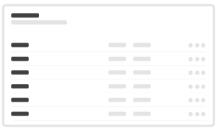
|         <div><figure><img src="/files/3lnQRMj7wTx85pPgrjdH" alt=""><figcaption></figcaption></figure></div><p>Variant count</p>         | Displays the system variant count.                                                                                                                                                                                                                                                              |
|         <div><figure><img src="/files/6eSUwqhdB3lLjjdn2IKl" alt=""><figcaption></figcaption></figure></div><p>Webhook errors</p>        | Lists recent webhook failures, including error messages and timestamps, enabling users to quickly identify and troubleshoot integration issues.                                                                                                                                                 |
|         <div><figure><img src="/files/T4qyAxsqTSMCC4Axynmc" alt=""><figcaption></figcaption></figure></div><p>Webhook events</p>        | Provides a log of successful webhook triggers and payloads, helping users monitor and verify external data synchronization and system integrations.                                                                                                                                             |


---

# Agent Instructions
This documentation is published with GitBook. GitBook is the documentation platform designed so that both humans and AI agents can read, navigate, and reason over technical content effectively. Learn more at gitbook.com.

## Querying This Documentation
If you need additional information that is not directly available in this page, you can query the documentation dynamically by asking a question.

Perform an HTTP GET request on the current page URL with the `ask` query parameter, and the optional `goal` query parameter:

```
GET https://docs.struct.com/reference/dashboard/widgets.md?ask=<question>&goal=<endgoal>
```

`ask` is the immediate question: it should be specific, self-contained, and written in natural language.
`goal` is optional and describes the broader end goal you are ultimately trying to accomplish on behalf of the user. GitBook uses it to tailor the answer towards what is most useful for that goal.

The response will contain a direct answer to the question and relevant excerpts and sources from the documentation.

Use this mechanism when the answer is not explicitly present in the current page, you need clarification or additional context, or you want to retrieve related documentation sections.
