> For the complete documentation index, see [llms.txt](https://docs.struct.com/llms.txt). Markdown versions of documentation pages are available by appending `.md` to page URLs; this page is available as [Markdown](https://docs.struct.com/pim3/tutorials/helpful-guides/how-to-use-import/how-to-use-file-mappings.md).
# How to use File mappings
File mappings allow you to save predefined mappings, making it easier if you frequently import the same structures.
## Navigating to File mappings
You can find File mappings through Settings -> File mappings in the Struct PIM sidebar.
Clicking 'File mappings' will present you with an overview of all file mappings currently in the system.
To create a new File mapping click the green "Create new"-button in the top-right corner.
## Setting up the basics
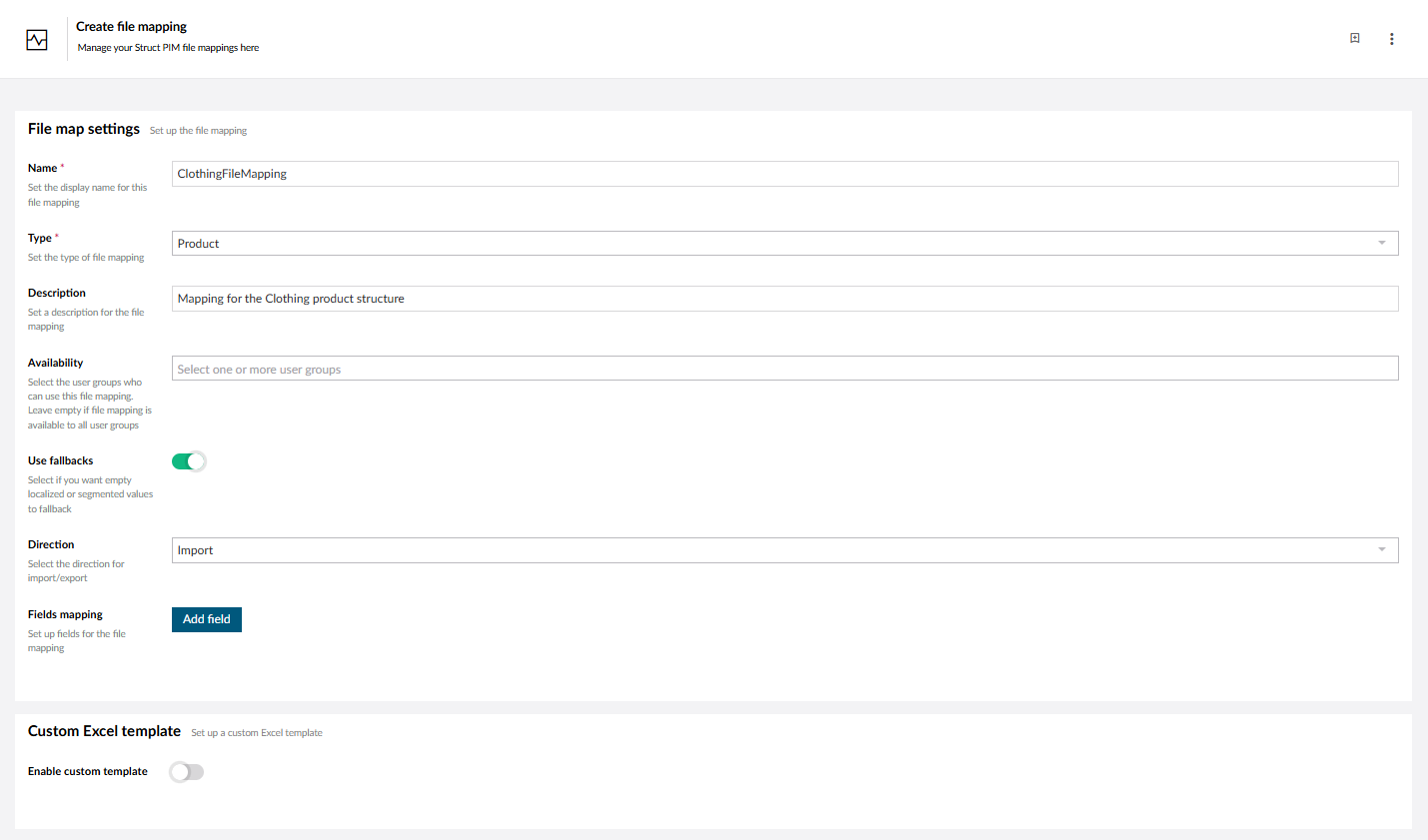
Having clicked "Create new" you are presented with the 'Create file mapping'-page.
We start by setting up the basics, like name, type of the entity you wish to import and an optional description.
Next we have the option of limiting the file mapping to only certain user groups by adding them under 'Availability'. In this tutorial we have elected to allow all user groups to use the file mapping.
Create file mapping
You can choose to enable 'Use fallbacks' if you want empty localized or segmented values to fallback and finally you can choose the direction for the import/export.
For direction you have three options:
* Import - This file mapping only works when importing
* Export - This file mapping only works when exporting
* Import/Export - This file mapping works for importing and exporting.
For this tutorial we only want the file mapping to work when importing.
## Setting up the mappings
Under 'Fields mapping' you can click the "Add field"-button to add a field mapping, this field represents the mapping of a column to an [attribute](/pim3/fundamental-concepts/attributes.md) in the PIM. You can add as many as you wish.
Fields mapping with one column to attribute field added
For this tutorial we need three fields.
The 'Field name'-field represents the name of a column in the excel spreadsheet and the 'Map to PIM field'-field represents an [attribute](/pim3/fundamental-concepts/attributes.md) in the PIM.
The excel spreadsheet we are using in this tutorial has the headers 'ProductName', 'Brand' and 'Price'. They map to 'ProductName', 'Brand (en-GB)' and 'Price DKK' respectively.
Fields mapping with three columns and mapping filled in
Having finished the mapping, you need to choose one or more keys. These key(s) will act as keys to match existing entities in the system. If the key(s) match a [product](/pim3/fundamental-concepts/products-and-variants.md) in the system, that [product](/pim3/fundamental-concepts/products-and-variants.md) will be updated with the data from the excel spreadsheet.
You have now created a file mapping. To finalize the creation click the "Save changes"-button in the bottom-right corner now to save your file mappings.
{% hint style="info" %}
**Custom Excel template** is only for exporting, so it is not relevant for this tutorial.
{% endhint %}
## Where do I find my file mappings when importing
Next time you import entities for which you have a File mapping, you can click "Load mapping" on the data mapping page.
Data mapping page
This will reveal a dropdown showing all of the file mappings available to you. Choose your File mapping in the dropdown and click "Load".
Data mapping - loading File mapping
Now your File mapping is loaded and you can cherish the time you saved mapping and click "Next" to continue importing.
---
# Agent Instructions
This documentation is published with GitBook. GitBook is the documentation platform designed so that both humans and AI agents can read, navigate, and reason over technical content effectively. Learn more at gitbook.com.
## Querying This Documentation
If you need additional information that is not directly available in this page, you can query the documentation by asking a question.
Perform an HTTP GET request on the following URL with the `ask` and `goal` query parameters:
```
GET https://docs.struct.com/pim3/tutorials/helpful-guides/how-to-use-import/how-to-use-file-mappings.md?ask=&goal=
```
`ask` is the immediate question: it should be specific, self-contained, and written in natural language.
`goal` is what the user is ultimately trying to achieve, the reason they need the answer. Sharing it helps GitBook give you a better, more relevant answer. A goal is most helpful when it describes the outcome the user wants rather than restating the question. For example, with `ask=how do I create an API token`, a goal like `automate deployments from our CI pipeline` lets GitBook tailor the answer to that use case.
The response will contain a direct answer to the question and relevant excerpts and sources from the documentation.
Use this mechanism when the answer is not explicitly present in the current page, you need clarification or additional context, or you want to retrieve related documentation sections.