> For the complete documentation index, see [llms.txt](https://docs.struct.com/llms.txt). Markdown versions of documentation pages are available by appending `.md` to page URLs; this page is available as [Markdown](https://docs.struct.com/pim3/tutorials/helpful-guides/how-to-use-business-rules/how-to-use-conditions-in-a-business-rule.md).
# How to use conditions in a business rule
A guide to setup and configure conditions in a business rule
## Why use conditions?
Conditions allow a business rule to take on multiple different kinds of behavior depending on the input. This makes it possible to make rules that are more specific and flexible depending on what is needed.
## Set up
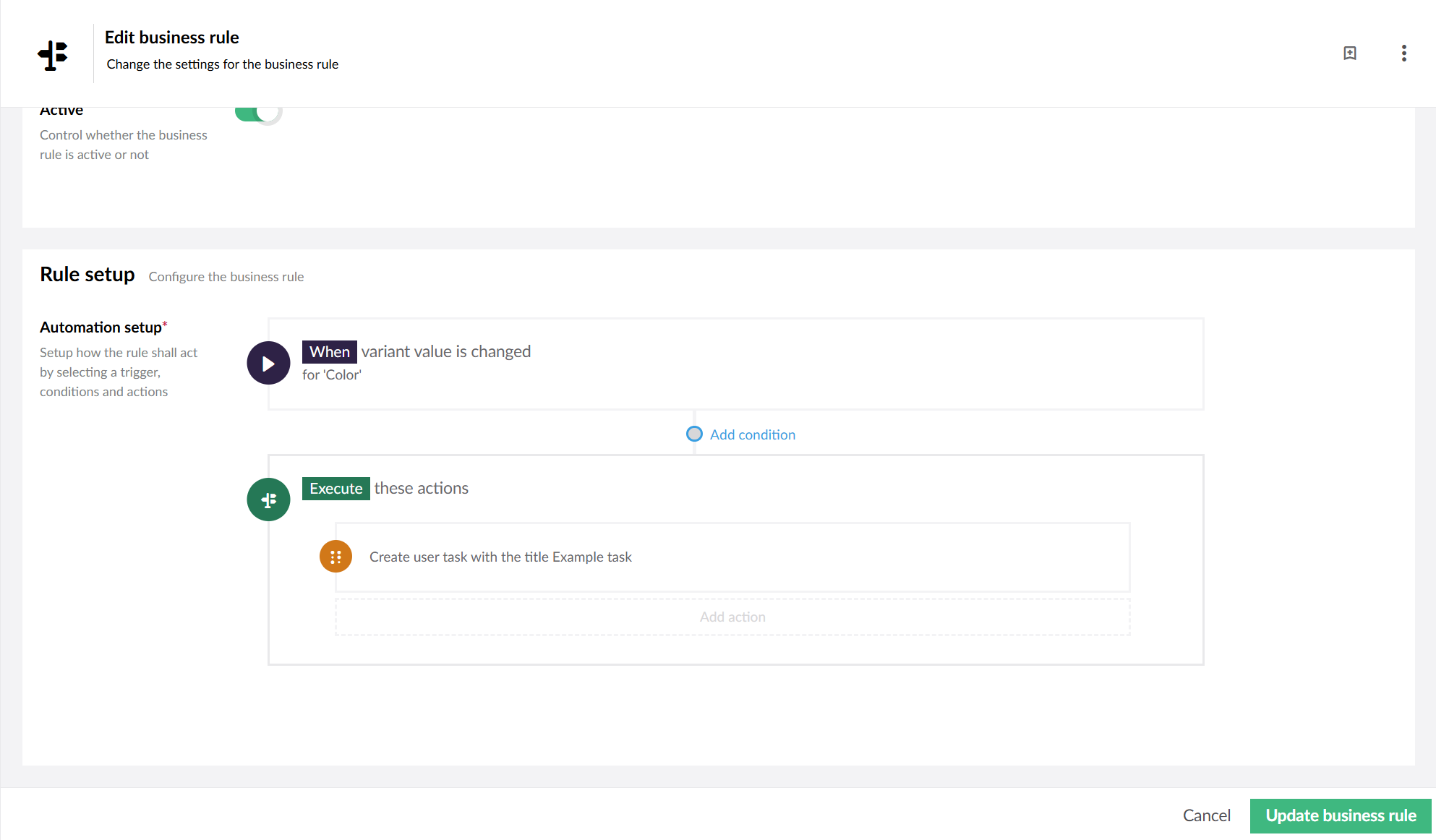
Business rule setup page
To set up a [condition](/pim3/reference/product-model-setup/business-rules/business-rule-details/conditions/condition-details.md) for a business rule click the small "Add condition" circle between the [trigger](/pim3/reference/product-model-setup/business-rules/business-rule-details/triggers/trigger-details.md) and the [actions](/pim3/reference/product-model-setup/business-rules/business-rule-details/actions/action-details.md). This will take you to the set up conditions page.
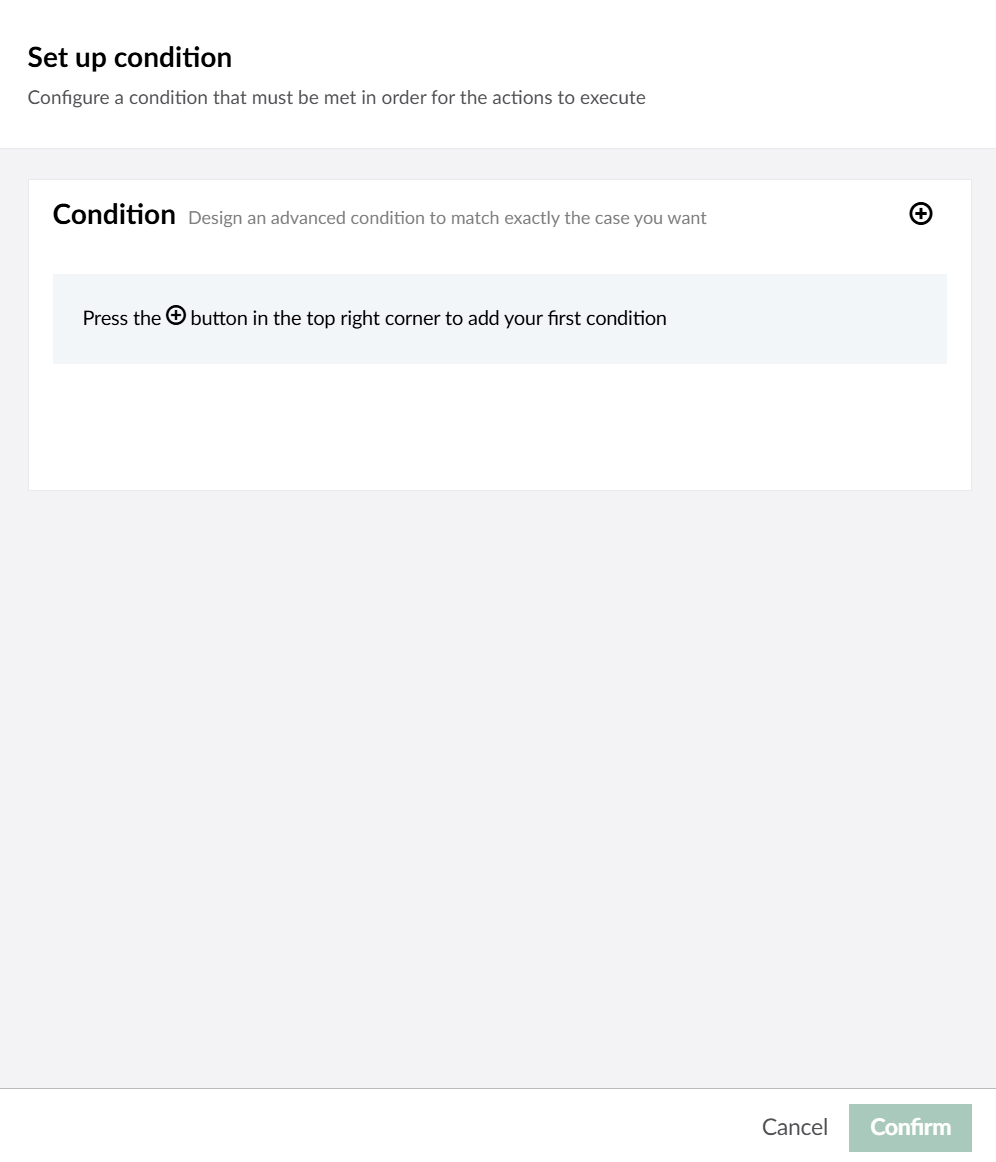
Condition setup page
On the page click the + symbol to add a [condition](/pim3/reference/product-model-setup/business-rules/business-rule-details/conditions/condition-details.md).
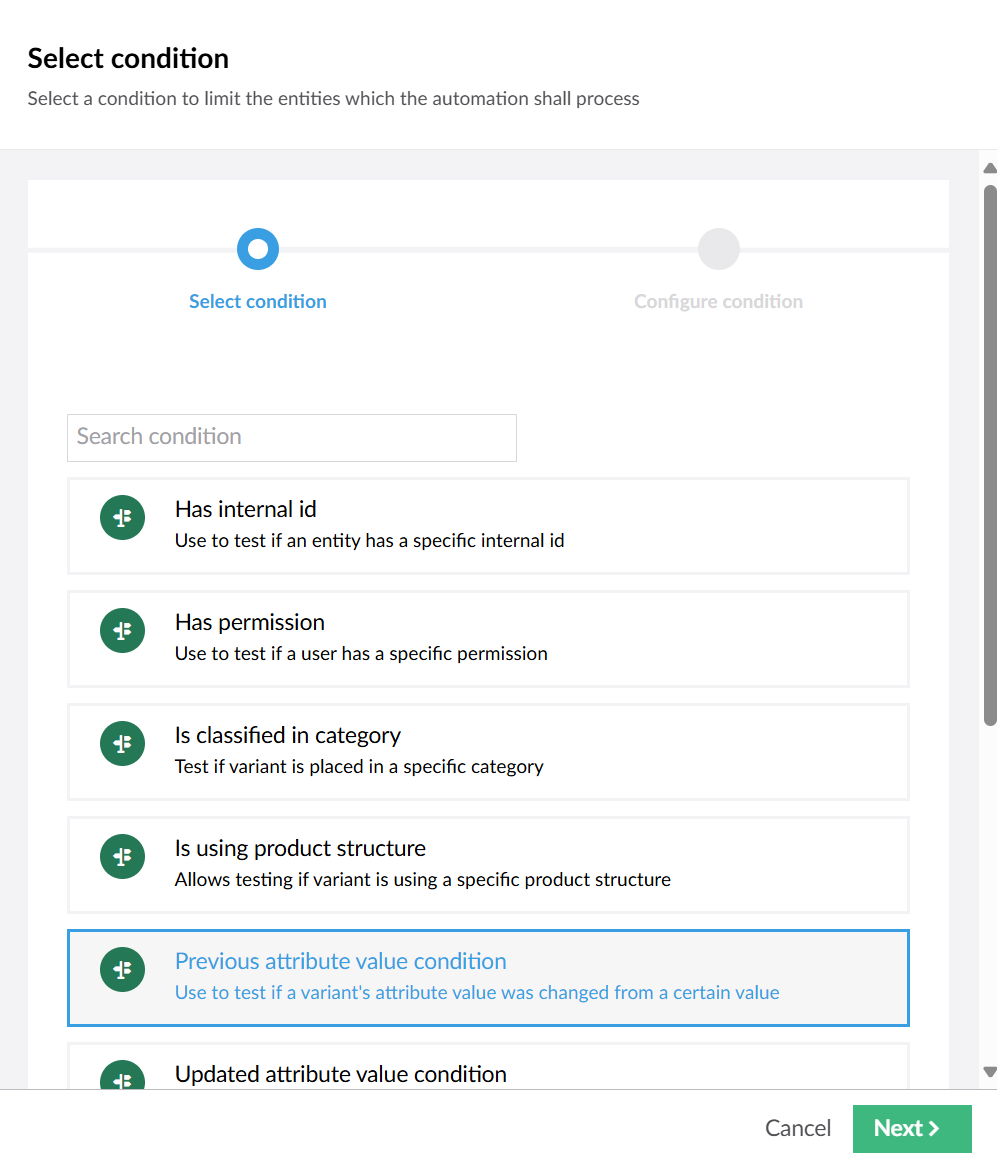
Select condition
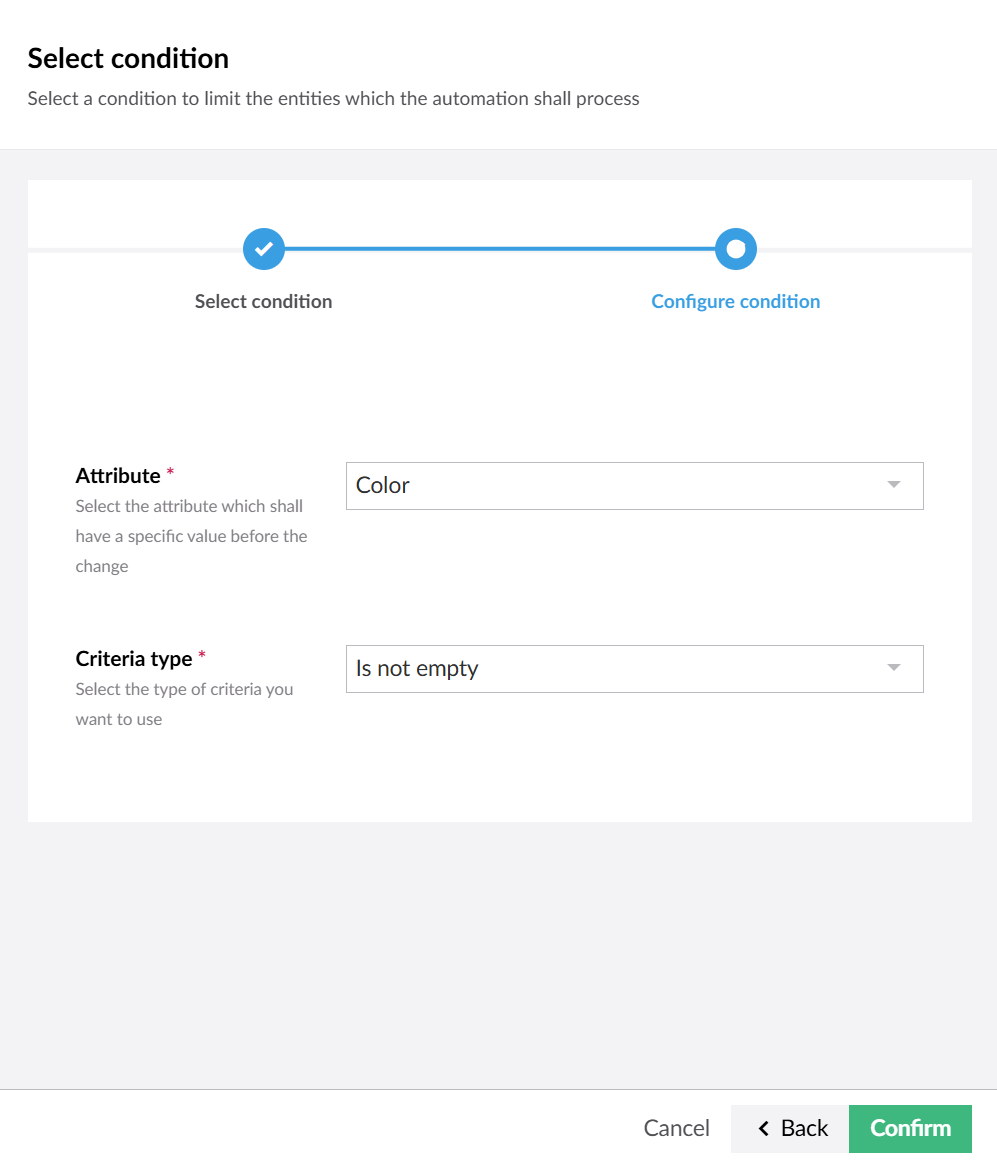
Configure condition
First you need to select a [condition](/pim3/reference/product-model-setup/business-rules/business-rule-details/conditions/condition-details.md). For this example 'Previous attribute value condition' is chosen. \
Next you need to configure your [condition](/pim3/reference/product-model-setup/business-rules/business-rule-details/conditions/condition-details.md) if applicable. e.g. 'Color and is not empty'.\
\
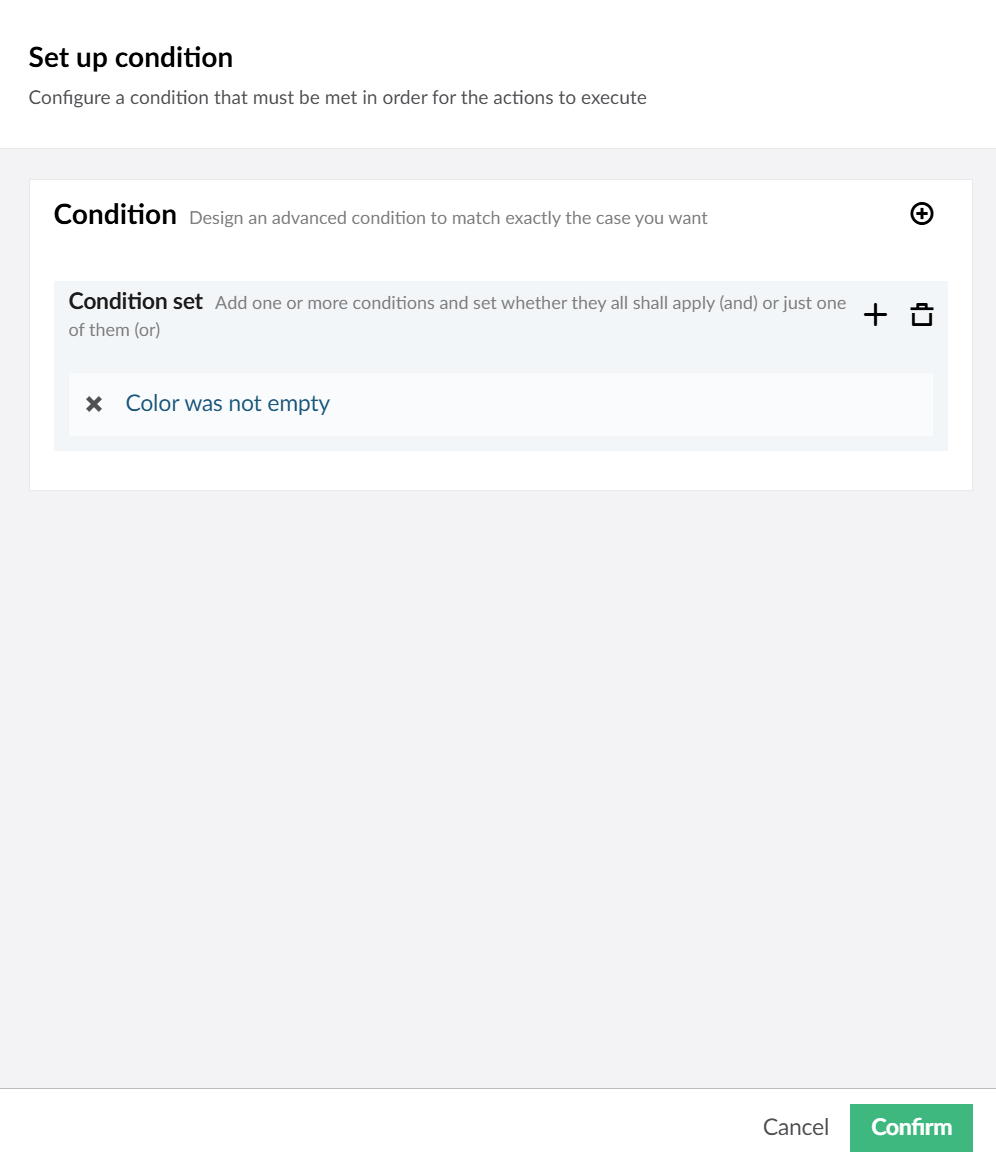
When you click confirm you have added the first [condition](/pim3/reference/product-model-setup/business-rules/business-rule-details/conditions/condition-details.md) to your condition set.
A condition set with 1 condition
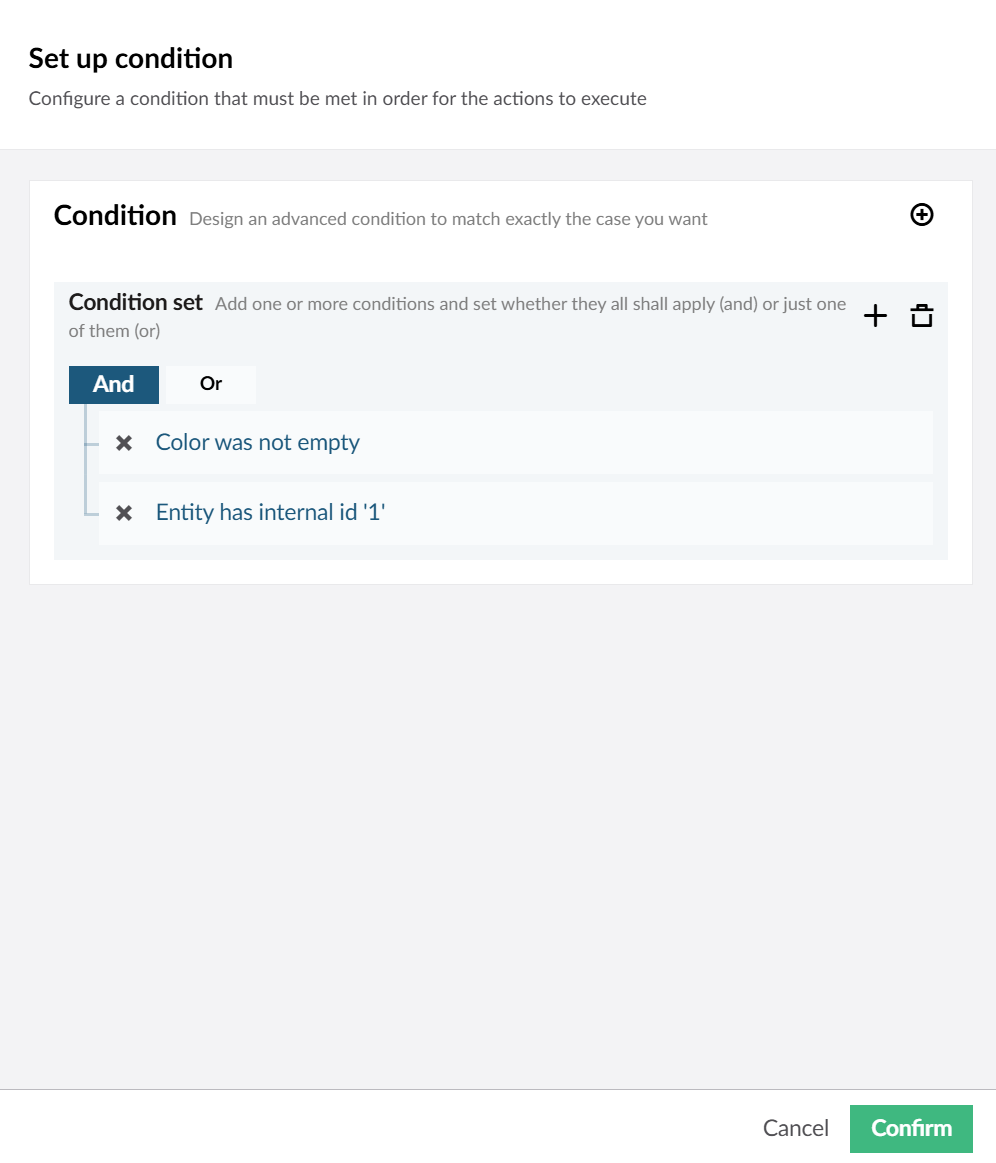
A condition set with 2 conditions
If you wish to add just one [condition](/pim3/reference/product-model-setup/business-rules/business-rule-details/conditions/condition-details.md) you can click "Confirm". This will add the [condition](/pim3/reference/product-model-setup/business-rules/business-rule-details/conditions/condition-details.md) to your business rule.\
\
You can also add more conditions to your condition set. If you wish to do so, you have to choose how they relate to each other. You can choose between "And" or "Or".\
\
"Or" requires only one [condition](/pim3/reference/product-model-setup/business-rules/business-rule-details/conditions/condition-details.md) to be met for the condition set to be fulfilled.\
\
"And" requires all of the[ conditions](/pim3/reference/product-model-setup/business-rules/business-rule-details/conditions/condition-details.md) to be met. \
\
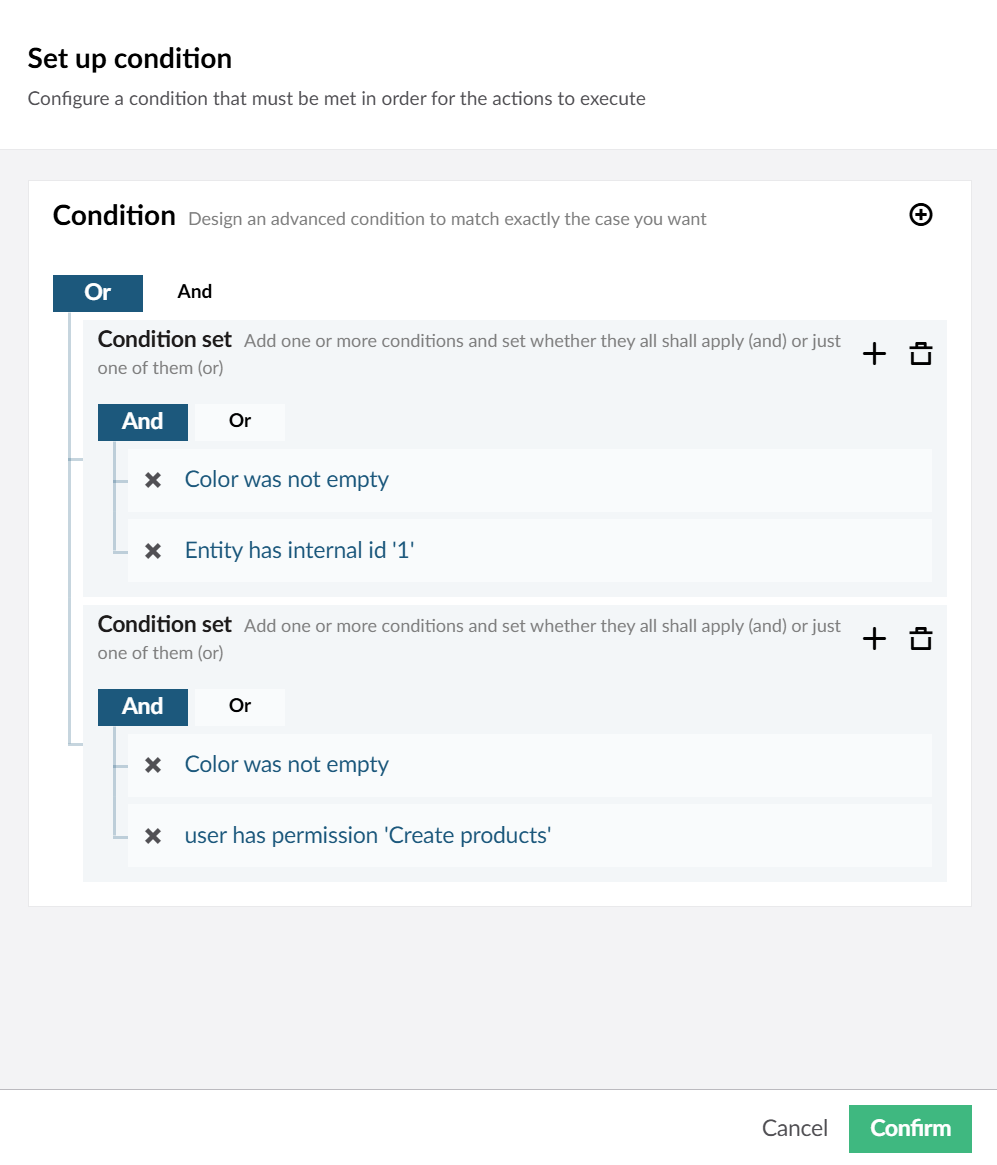
You can also choose to add another condition set by clicking the  symbol.
Condition setup page
Condition sets relate to each other in the same way [conditions](/pim3/reference/product-model-setup/business-rules/business-rule-details/conditions/condition-details.md) within a condition set do.
Once you are satisfied with your [condition](/pim3/reference/product-model-setup/business-rules/business-rule-details/conditions/condition-details.md), click "Confirm".
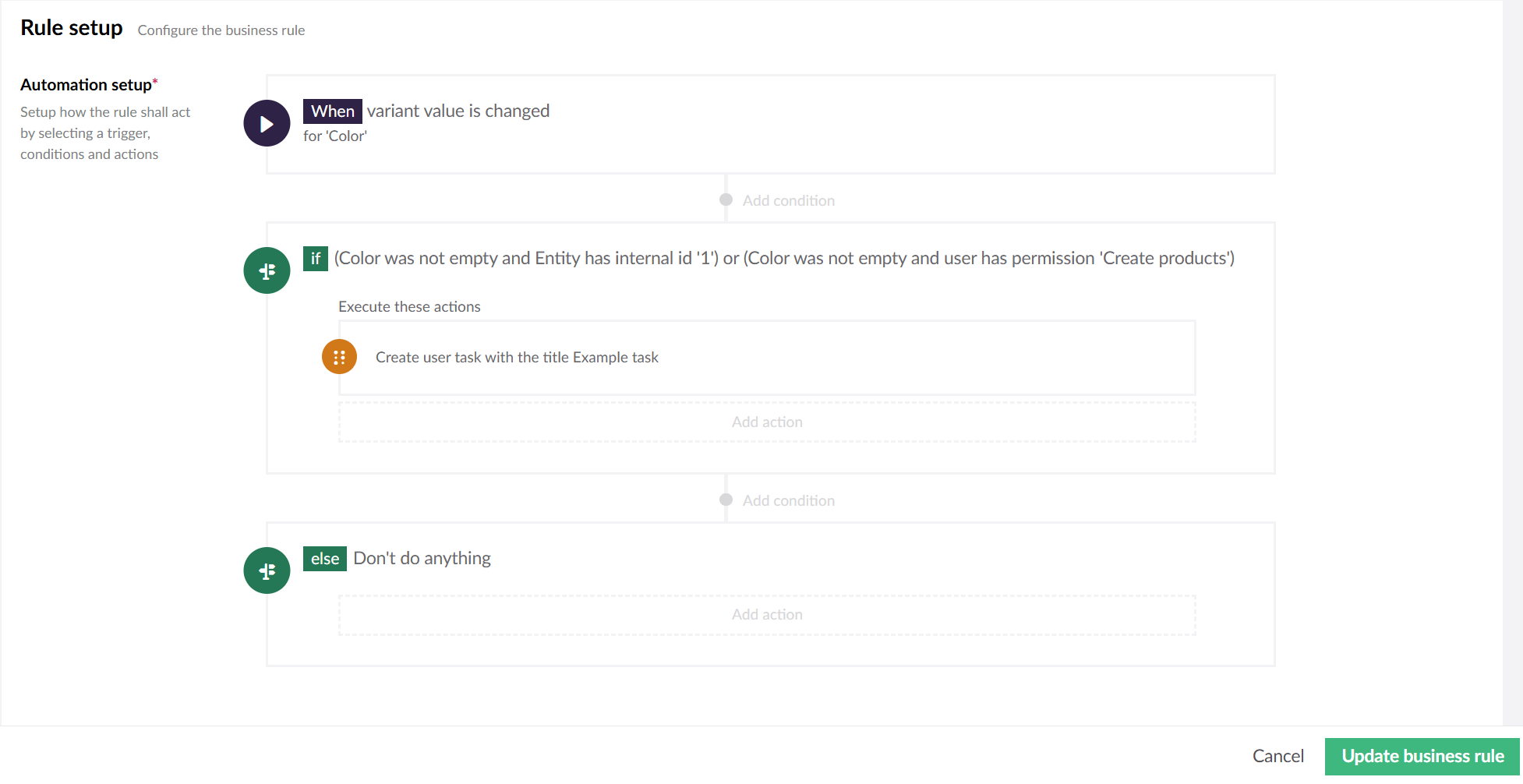
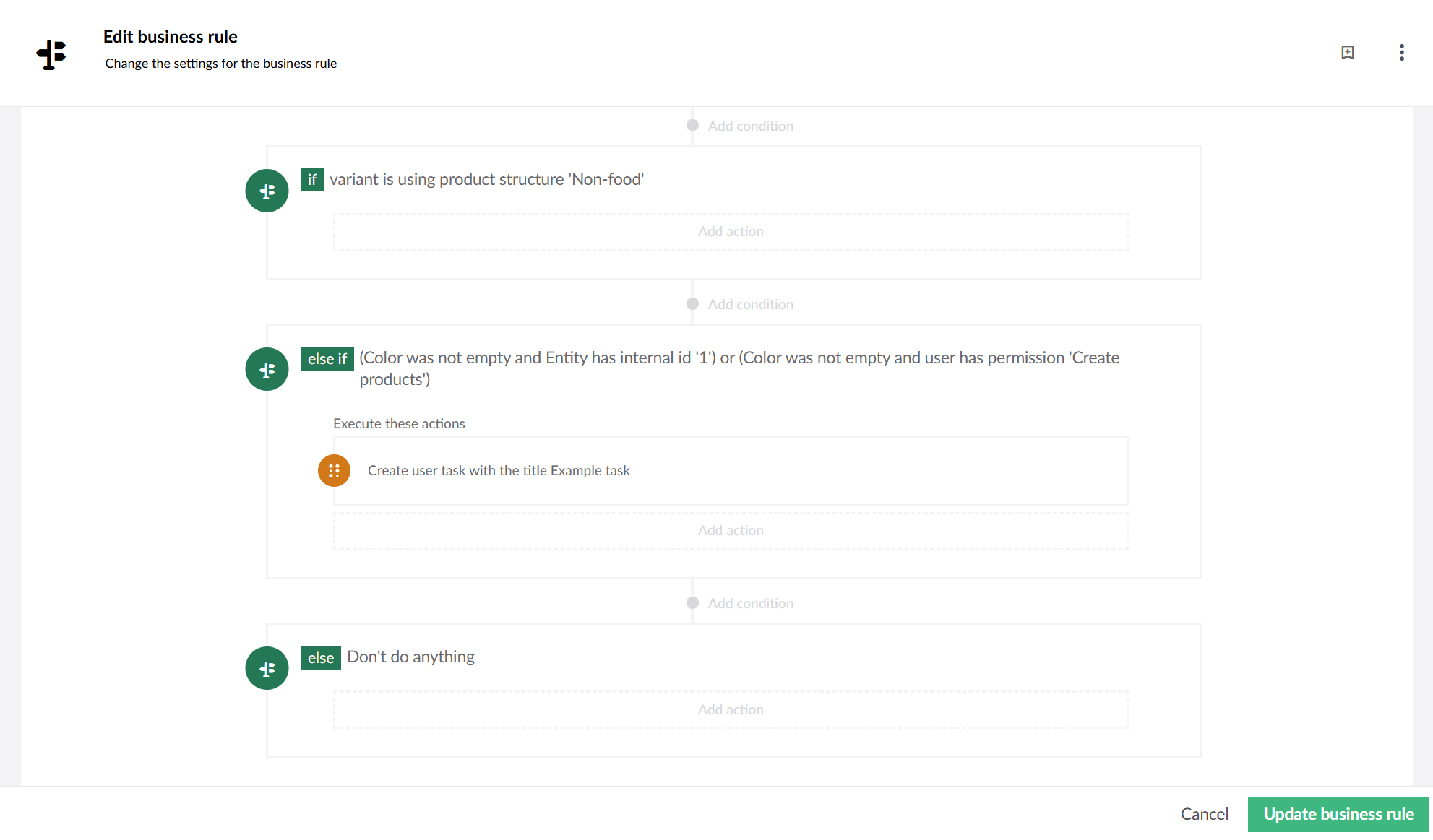
Business rule setup page
Having added a [condition](/pim3/reference/product-model-setup/business-rules/business-rule-details/conditions/condition-details.md), there are now 2 boxes that contains[ actions](/pim3/reference/product-model-setup/business-rules/business-rule-details/actions/action-details.md). One will execute if the [condition](/pim3/reference/product-model-setup/business-rules/business-rule-details/conditions/condition-details.md) is met and one will execute if the [condition](/pim3/reference/product-model-setup/business-rules/business-rule-details/conditions.md) is *not* met.\
\
Note that the task, that was previously in Execute has been moved into the [condition](/pim3/reference/product-model-setup/business-rules/business-rule-details/conditions/condition-details.md) we just added. You can add more [conditions](/pim3/reference/product-model-setup/business-rules/business-rule-details/conditions/condition-details.md) by clicking "Add condition" above or under the "if" box.
Business rule setup page
These [conditions](/pim3/reference/product-model-setup/business-rules/business-rule-details/conditions/condition-details.md) will be checked sequentially from top to bottom, and if one [condition](/pim3/reference/product-model-setup/business-rules/business-rule-details/conditions.md) is met the rest will not be checked.
So in this example, if the variant is using the product structure 'Non-food' it will not check anything else, since that is the first [condition](/pim3/reference/product-model-setup/business-rules/business-rule-details/conditions/condition-details.md) to be checked.
---
# Agent Instructions
This documentation is published with GitBook. GitBook is the documentation platform designed so that both humans and AI agents can read, navigate, and reason over technical content effectively. Learn more at gitbook.com.
## Querying This Documentation
If you need additional information that is not directly available in this page, you can query the documentation by asking a question.
Perform an HTTP GET request on the following URL with the `ask` and `goal` query parameters:
```
GET https://docs.struct.com/pim3/tutorials/helpful-guides/how-to-use-business-rules/how-to-use-conditions-in-a-business-rule.md?ask=&goal=
```
`ask` is the immediate question: it should be specific, self-contained, and written in natural language.
`goal` is what the user is ultimately trying to achieve, the reason they need the answer. Sharing it helps GitBook give you a better, more relevant answer. A goal is most helpful when it describes the outcome the user wants rather than restating the question. For example, with `ask=how do I create an API token`, a goal like `automate deployments from our CI pipeline` lets GitBook tailor the answer to that use case.
The response will contain a direct answer to the question and relevant excerpts and sources from the documentation.
Use this mechanism when the answer is not explicitly present in the current page, you need clarification or additional context, or you want to retrieve related documentation sections.